
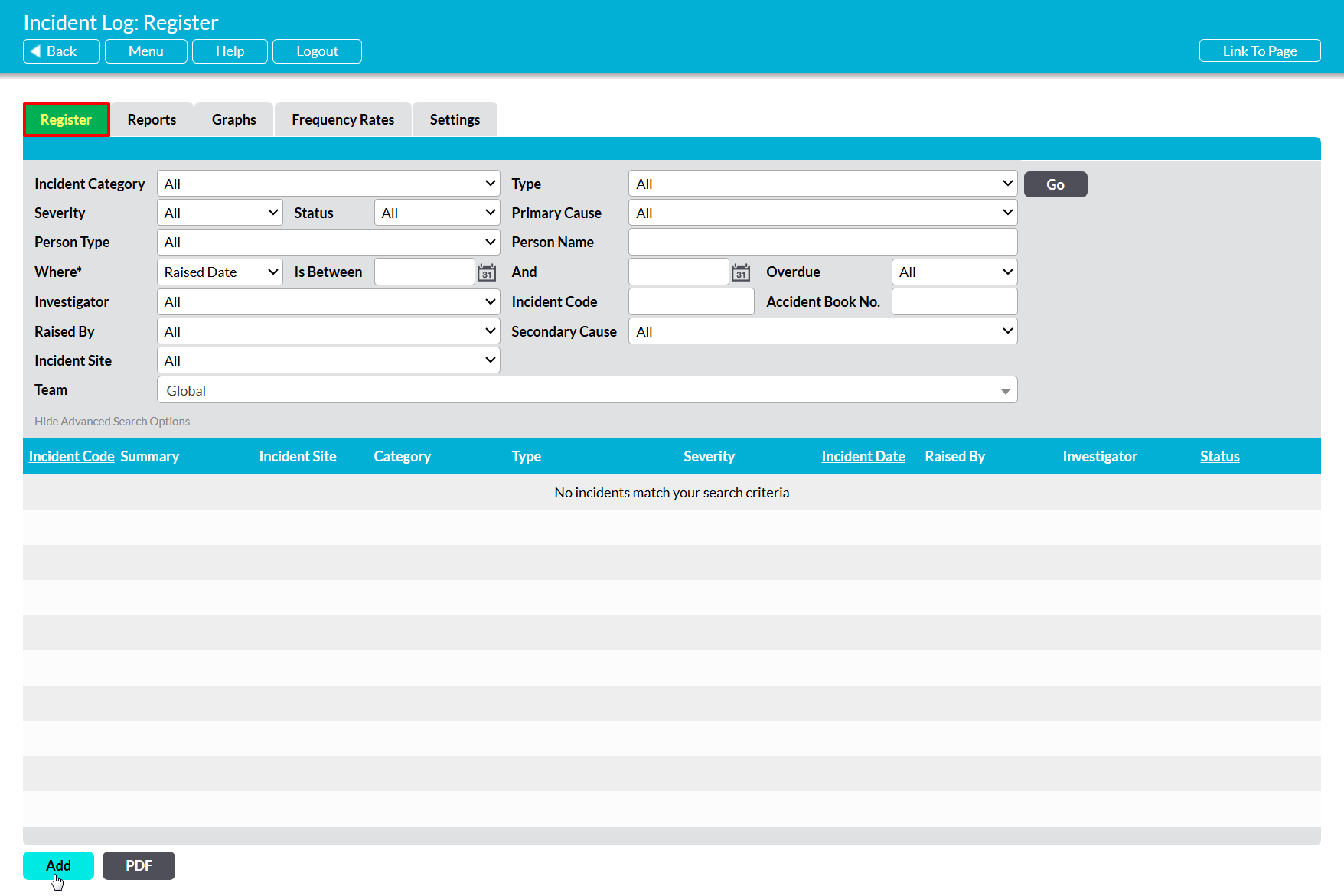
To add a new Incident Log, open the Incident Log module on its Register. This will display a list of all Incident Logs that are currently recorded within your system.
Click on the Add button.
A new Details form will be opened for you to populate. Up to thirty-one fields will be available for you to complete, depending on the modules within your system:
Incident Code* – automatically generated identification code for the Incident Log. Note that codes are generated sequentially, based on the last (highest) code within your system. In addition, this field might be locked for editing, or editable (allowing users to manually modify the code), depending on your module’s configurations (see Configure Incident Log Settings). Note that Activ will not allow you to assign an Incident Code that has already been used within your system.
Raised Date – automatically populated with the date on which the Incident Log was first created.
Raised By – automatically populated with the name of the user who entered the Incident Log into Activ.
Accident Book No. – enables you to enter an internal reference code, such as an Accident Book number, if required.
Status* – the current Status of the Incident Log. This will automatically default to ‘Raised’ when the record is initially added to your system.
Summary* – enter a short description of the Incident, e.g. “Chemical spill in zone A of factory”.
Date / Time of Incident* – enter the date and time at which the Incident originally occurred.
Location* – enter a short description of the place where the Incident occurred.
Incident Category* – use the dropdown to select the appropriate category of Incident. Note that this field can be configured through your module’s Settings tab (see Configure Incident Log Settings), and that it is initially populated with four default options:
- Accident – any unplanned event that results in injury or ill-health to people; or damage or loss to property, plant, materials, or the environment; or a loss of a business opportunity.
- Near Miss – any event that could have resulted in an accident/incident, or any set of conditions or circumstances that have the potential to cause an accident/incident to occur.
- Security – any unplanned event that impacts the physical or digital security of your organisation, people, and/or data.
- Incident – any unplanned event that disrupts or causes the loss of your services, functions, and/or operations.
Type* – use the dropdown menu to select the broad term that best describes the nature of the Incident that is being recorded (e.g. ‘Environmental Impact’). Note that this field can be configured through your module’s Settings tab (see Configure Incident Log Settings).
Sub-type* – use the dropdown to select the term that best describes the specific nature of the Incident that is being recorded. This field provides an additional layer below the broad Incident Type, and the available options are dependent on your current selection within the Type field (e.g. you may be able to select ‘Chemical Spill’ as a Sub-Type if the Type is ‘Environmental Impact’, but you would not be able to select ‘Scald’). Note that this field can be configured through your module’s Settings tab (see Configure Incident Log Settings).
Person Type* – use the dropdown menu to specify the type of person (e.g. employee, customer, etc) that was impacted by the Incident. Alternatively, if the Incident did not affect any people (e.g. the only impact was to a place or piece or equipment, etc), select ‘None/Other’ instead. Note that this field can be configured through your module’s Settings tab (see Configure Incident Log Settings).
Name of Person* – enter the name of the person who was affected by the Incident, if the Incident is related to a specific individual. Note that this field will present you with a list of users and no-login employees if the Person Type is set to ‘Employee’, and will be a free-text field in all other instances.
Team – only available if your Activ package includes the Teams module. Use this field to specify which Team the Incident Log affected (and should be managed by), or leave it blank if the record should be accessible to all Teams and/or the Incident did not impact a specific Team.
Incident Site – only available if the Incident Sites setting option has been enabled for your Incident Log module. Use the dropdown menu to specify the specific Site that the Incident occurred at. Note that this field can be configured through your module’s Settings tab (see Configure Incident Log Settings).
Incident Description* – enter a detailed description of the Incident that is being logged, noting that details such as witness statements will be entered in a dedicated tab once the initial record has been created. Also note that this field is self-expanding, and will allow several paragraphs to be entered.
Investigator – optionally, use the dropdown menu to assign the user who is responsible for investigating the Incident. Note that this individual must have an Activ user account: you cannot assign an investigator who has not already been set up in your system. Also note that, provided they have enabled the appropriate Notification settings (See Incident Log Alerts and Reminders), the selected Investigator will automatically be notified that they have a new Incident Log to investigate.
Target Date* – use the calendar icon to set a target completion date for the investigation of the Incident.
Investigation Results – optionally, enter a detailed summary of any investigation that has already been carried out in response to the Incident (or leave this field blank if an investigation still needs to be undertaken). Note that this field is self-expanding, and will allow several paragraphs to be entered. Also note that this field is typically left blank when the Incident Log is initially raised, and completed after the subsequent investigation.
Severity* – use the dropdown menu to specify the severity of the Incident. Note that you can use the below table as a guideline for the severity levels of the most commonly occurring incidents if your organisation does not have its own guides. Note that this field can be configured through your module’s Settings tab (see Configure Incident Log Settings).
| Type | Severity | Detail |
| Injury/Ill health | Minor
Serious Reportable Major |
Local first aid required
Hospital treatment required Reportable to Enforcement Agency Single fatality/multiple person hospital treatment or Chronic/terminal illness |
| Equipment/Plant Damage | Minor
Serious Reportable Major |
<1 day downtime
>1 day downtime or Repair Cost >£10,000 Reportable to Enforcement Agency Total replacement/repair cost >£100,000 |
| Environmental Impact | Minor
Serious Reportable Major |
Impact only on the work area or <1 day cleanup
Impact on many work areas or >1 day cleanup, noticeable outside site boundaries Reportable to Enforcement Agency, breaches site boundaries Long term environmental damage, inside or outside site boundaries |
| Transport | Minor
Serious Reportable Major |
Nuisance complaint from 3rd party
Damage to 3rd party property Reportable to Enforcement Agency, RTA Fatality/major transport route closure |
Likely Recurrence – use the dropdown menu to specify the likelihood of the Incident reoccurring. Note that this field can be configured through your module’s Settings tab (see Configure Incident Log Settings).
Primary Cause – use the dropdown menu to specify the primary cause of the Incident. Note that this field can be configured through your module’s Settings tab (see Configure Incident Log Settings).
Secondary Cause – use the dropdown menu to specify the secondary cause of the Incident, if required. Note that this field can be configured through your module’s Settings tab (see Configure Incident Log Settings).
Hazard Type – use the dropdown menu to specify what type of Hazard caused the Incident (e.g. ‘Confined Space’ or ‘Environmental/Weather’). Note that this field can be configured through your module’s Settings tab (see Configure Incident Log Settings).
Hazard Source – use the dropdown menu to specify the source of the hazard that caused the Incident. This field is contingent upon the selected Hazard Type, and the available options are dependent on your current selection within the Hazard Type field (e.g. you may be able to select ‘Scaffolding’ as a Hazard Source if the Type is ‘Working at Height’, but you would not be able to select ‘Gas supply’). Note that this field can be configured through your module’s Settings tab (see Configure Incident Log Settings).
Reportable?* – use the dropdown menu to specify whether this Incident is subject to mandatory reporting to a governmental agency (e.g. in the UK, HSE Incidents may need to be reported under RIDDOR Regulations). Note that, in most countries, near-misses are not subject to mandatory reporting.
Agencies Notified – use the tickboxes to select the relevant Agency(s) that have been or will be notified of the Incident, if the Incident is Reportable. Note that this field can be configured through your module’s Settings tab (see Configure Incident Log Settings).
Emergency Services Attending – use the tickboxes to specify which Emergency Services, if any, attended the Incident. Note that this field can be configured through your module’s Settings tab (see Configure Incident Log Settings).
Risk Assessment Review Completed?* – use the dropdown menu to indicate whether the Risk Assessment for the relevant area has been reviewed.
Dated – use the calendar icon to enter the date of the Review, if a Risk Assessment review has been completed.
Assessment No – enter the reference number of the Risk Assessment Review, if a Review has been completed.
Enter the relevant information, and then click Save.

You will be taken to the new Incident Log’s Details tab, from which you can review the information you have entered. In addition, all other tabs associated with the Incident Log’s record will have become available for editing.

