
In some cases, you may find that you need to log a Risk or Opportunity that is too sensitive to be visible to your wider organisation, and that needs to be hidden from the majority of the users who have access to your Business Risk Manager. To support this, Activ provides users with the ability to make any Issue that they have created Private, adding an additional layer of security to the Issue that overrides normal BRM Permissions and limits access to the specific users that you specify. This means that users with access to the BRM will only be able to view the Private Issue and its contents if they have been given the appropriate Access Rights to it – i.e. if they are explicitly authorised to view it (see View and Update a Risk/Opportunity’s Access Rights).
By default, Activ users have no Access Rights to Private records, meaning that if a user has not been given Access Rights to the Issue they will not be able to see its name within the register or view its contents even if they have ‘Admin’ permissions to the module as a whole. In addition, if the Issue is linked to any other record within Activ, then the link will only be visible and useable for those who Access Rights to the Issue: anyone who does not have Access Rights will either be unable to see the link at all, or will be presented with some short text advising them that they do not have permission to see the record. As such, it is important to review the Access Rights tab and assign appropriate Access Rights to those users who needs to be able to access the Issue at the time that the Issue is made Private.
Note that users can only make an Issue Private (or remove Privacy from an Issue) if both of the following criteria are met:
- the user has at least ‘Edit’ permissions to the Business Risk Manager; and
- the user is the Issue’s creator.
*****
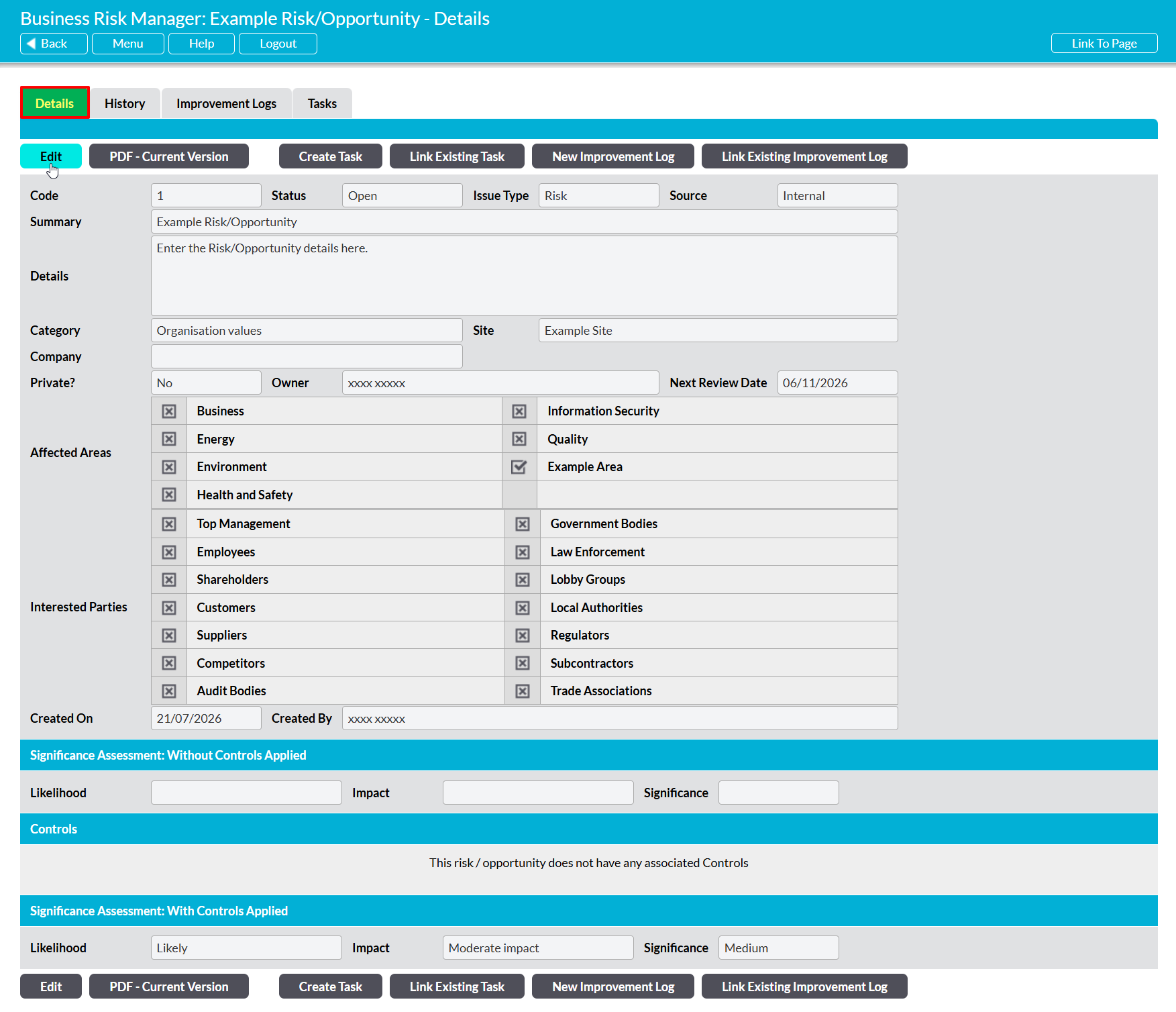
To make an Issue Private open the Issue on its Details tab and click on the Edit button.
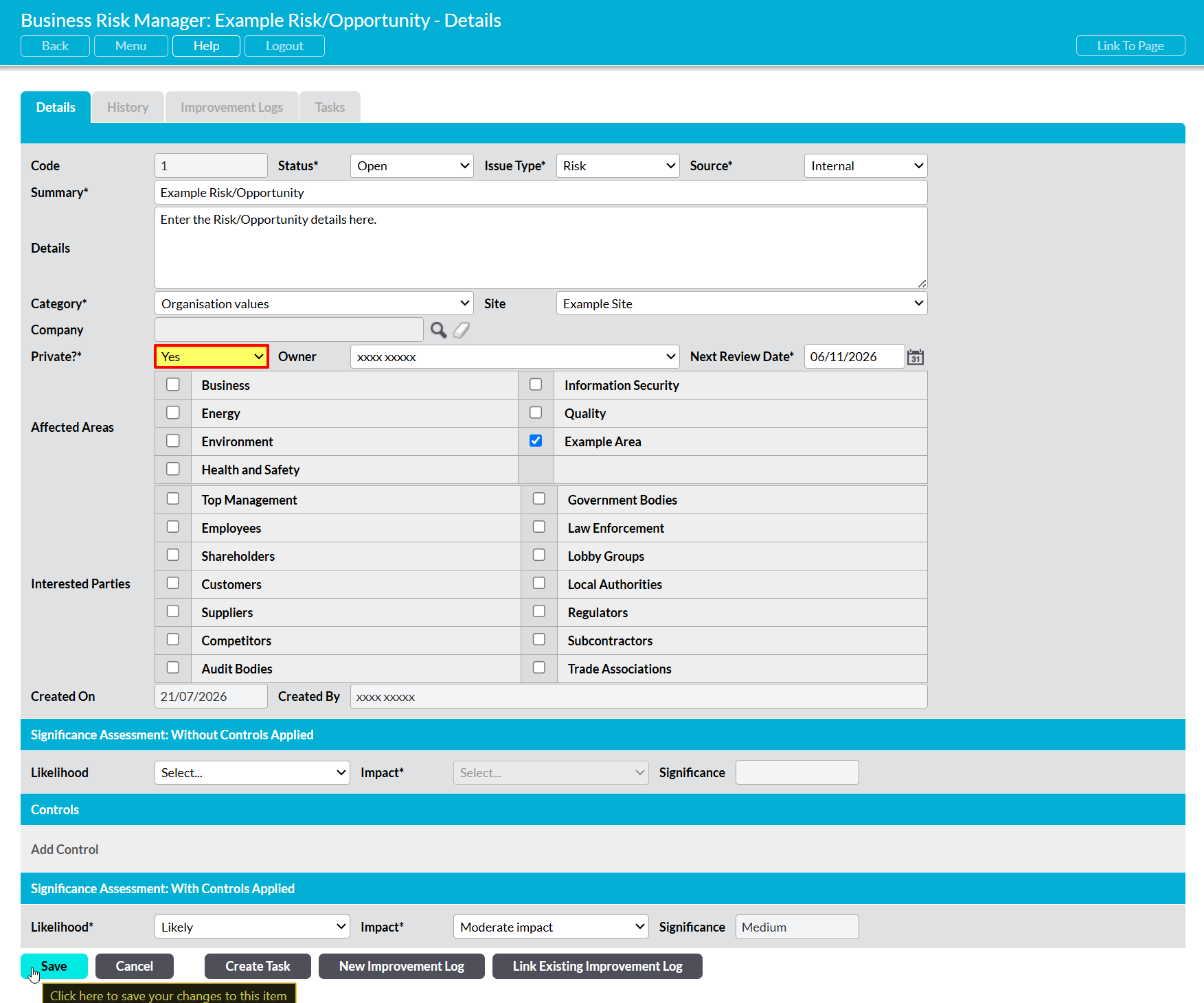
Change the Private?* field’s dropdown menu to ‘Yes’, and then click Save.
The Issue will now be marked as Private, meaning that it can only be viewed by those who have explicitly been given permission (i.e. Access Rights) to view its content.
