
In some cases, you may find that you need to verify which of your users currently has Access to a Private Risk/Opportunity, or to modify a user’s Access Rights to a particular Issue to ensure that they have the appropriate level of Access to the Issue. To support this, Activ provides a dedicated Access Rights tab for all Issues that have been flagged as Private, allowing appropriate users to manage Access from directly within the Private record itself.
Note that, unlike in other areas of Activ (e.g. the File Manager), Access Rights for Risks/Opportunities can only be viewed and updated by the Issue’s Creator. If you are not the named Creator, you will not be able to access this area.
*****
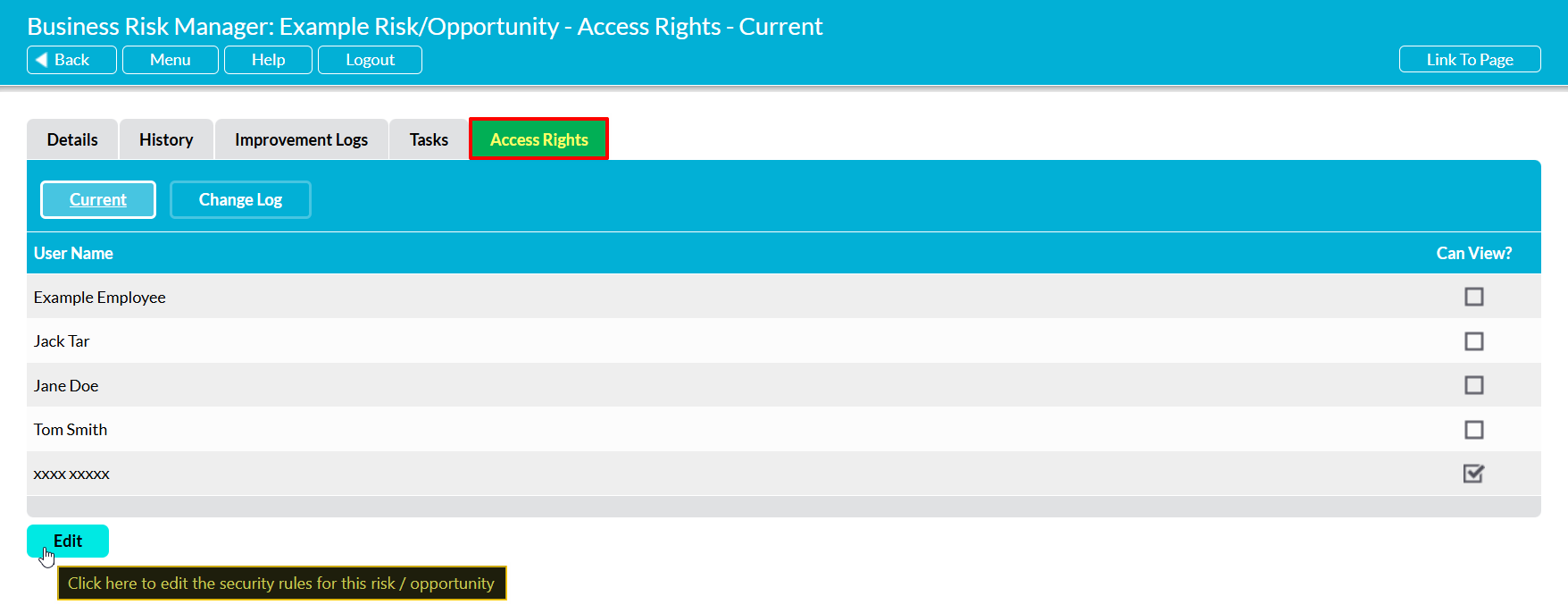
To manage the users who have Access to a Private Risk/Opportunity, open the Issue and click on its Access Rights tab. You will be presented with a list of the users who have permissions to the Business Risk Manager, and a record of each individual’s current Access Rights to the Issue. One level of Access Right will be available:
- Can View? – the user will be able to view the Issue and its content. If a user can view the Private Issue, then their normal module Permissions will control what they can do to the Issue (i.e. a user with ‘Read Only’ permissions to the BRM will only be able to view the Issue; a user with ‘Edit’ permissions will be able to Edit the Issue, etc).
To update your users’ Access to the Issue, click on the Edit button displayed at the bottom of the screen.
The form will be opened for editing. Use the tick boxes displayed alongside each user to assign Access Rights to the appropriate users, and then click Save.
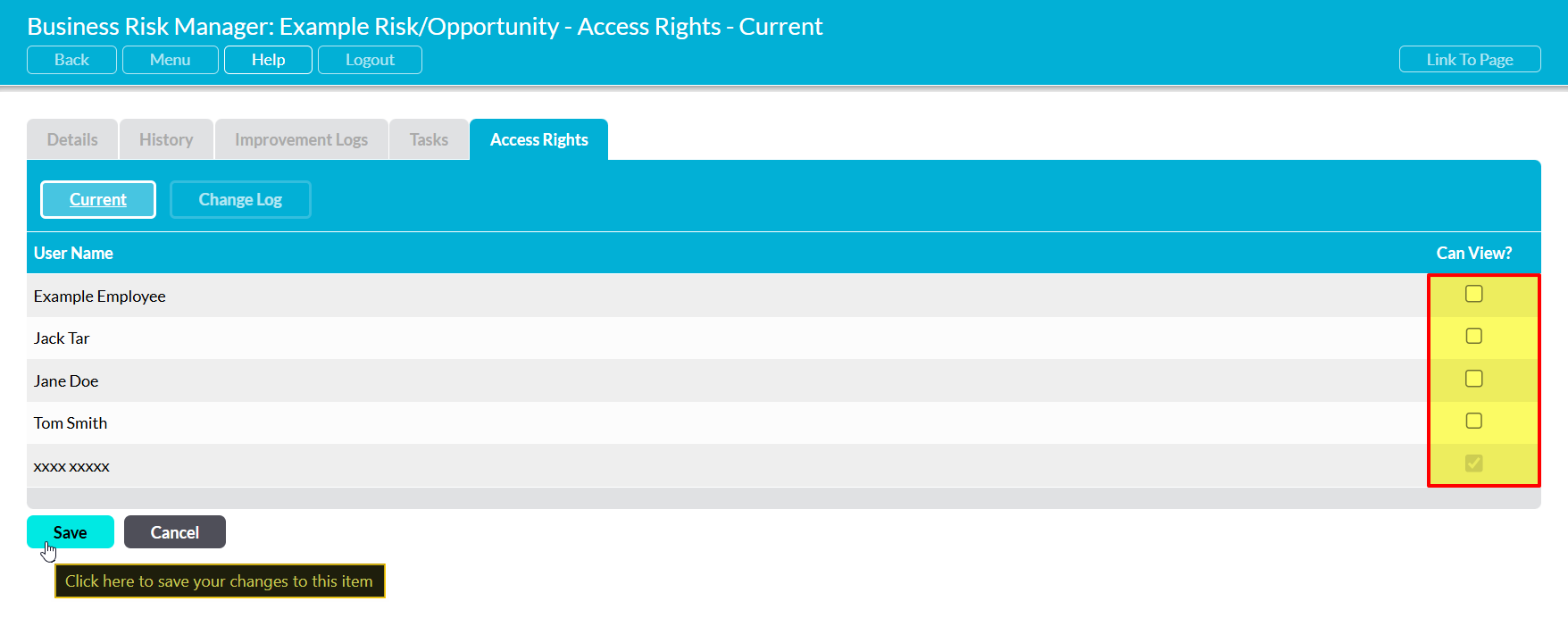
The specified Access Rights will take effect immediately, providing or restricting each user’s Access accordingly.
