
In some cases, you may find that you have a need to add additional supporting files to your Incident Logs, and that it is not appropriate to store those files within your File Manager (or that you do not have the File Manager module within your package, so cannot store the files within it). These will typically be files that are specific to the Incident that they are associated with: for example written reports relating to the Incident, relevant documentation from any emergency services that were involved, or video footage of the scene or Incident. To enable these files to be recorded, all Incident Logs within Activ include a dedicated Attached Files tab, which has been designed to allow you to upload file attachments directly to the Incident Log. This ensures that all information relating to an Incident can be stored within one overarching record.
Note that you should not use the attachments option to add photographic evidence to your Incident Logs, as any photos added in this manner will be displayed against the final PDF as links instead of images. To ensure that photographic evidence is displayed correctly, you must upload it using the dedicated Photos area (see Add Photos to an Incident Log).
To add attachments to an Incident Log, open the relevant Incident Log and click on its Attached Files tab. You will be presented with a dedicated Attachments area, which is used to view and manage any attachments that are related to the Incident Log. Click on the Edit button at the bottom of the screen.
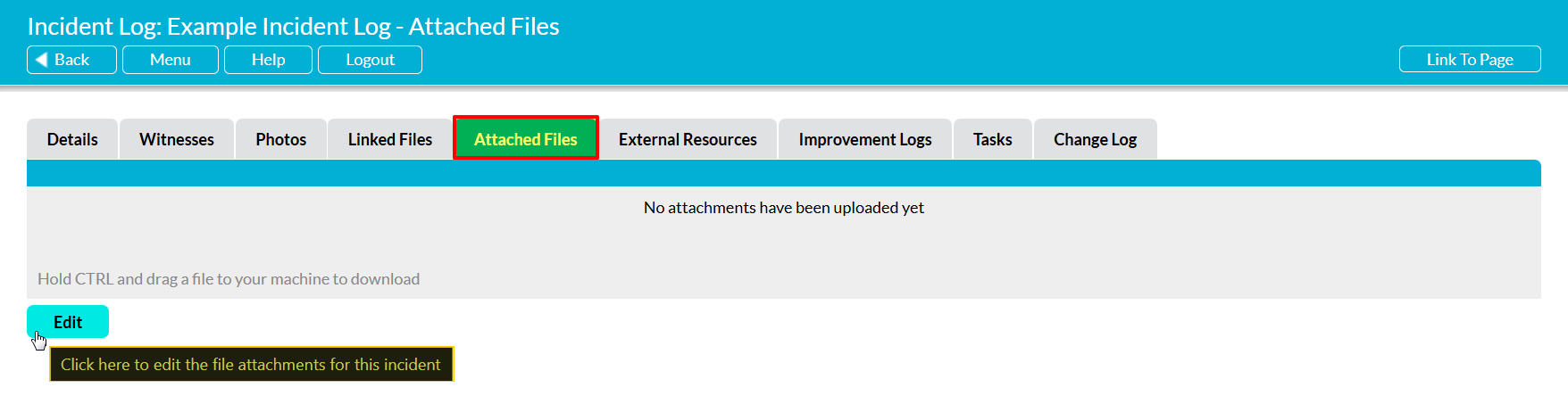
The Attachments area will be opened for editing. One field will be available for you to complete:
Add Attachment – click on the provided text to open your file explorer, and select the files you wish to upload as attachments. Note that additional Add Attachment rows will be added to the form as you make your selections, enabling you to add multiple attachments at once, and to add attachments from multiple different folders.
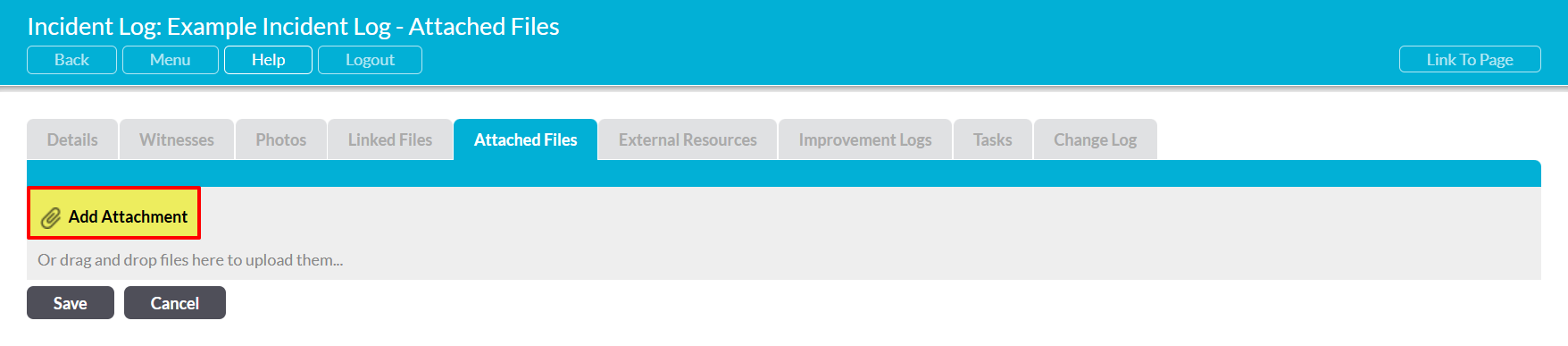
Enter the relevant information, and then click Save.
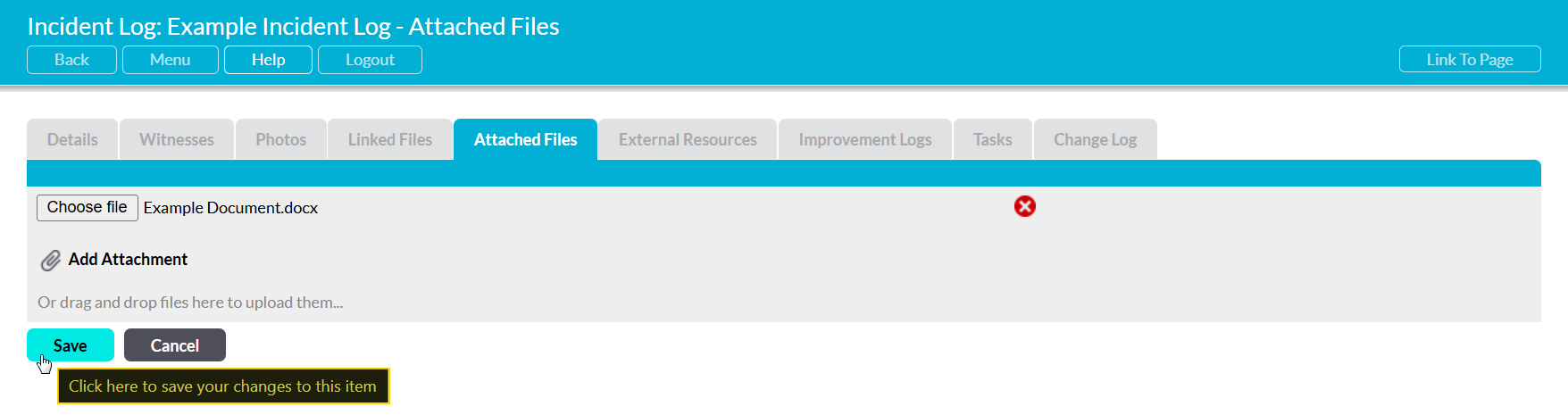
Your selected attachments will be uploaded to the Incident Log, and will be displayed within the record’s Attachments area.
