
For convenience, all photos that have been added to an Incident Log can be managed from that Incident’s record using its Photos tab.
This article provides guidance on managing your existing photos, and covers:
*****
View an Incident Log’s Photos
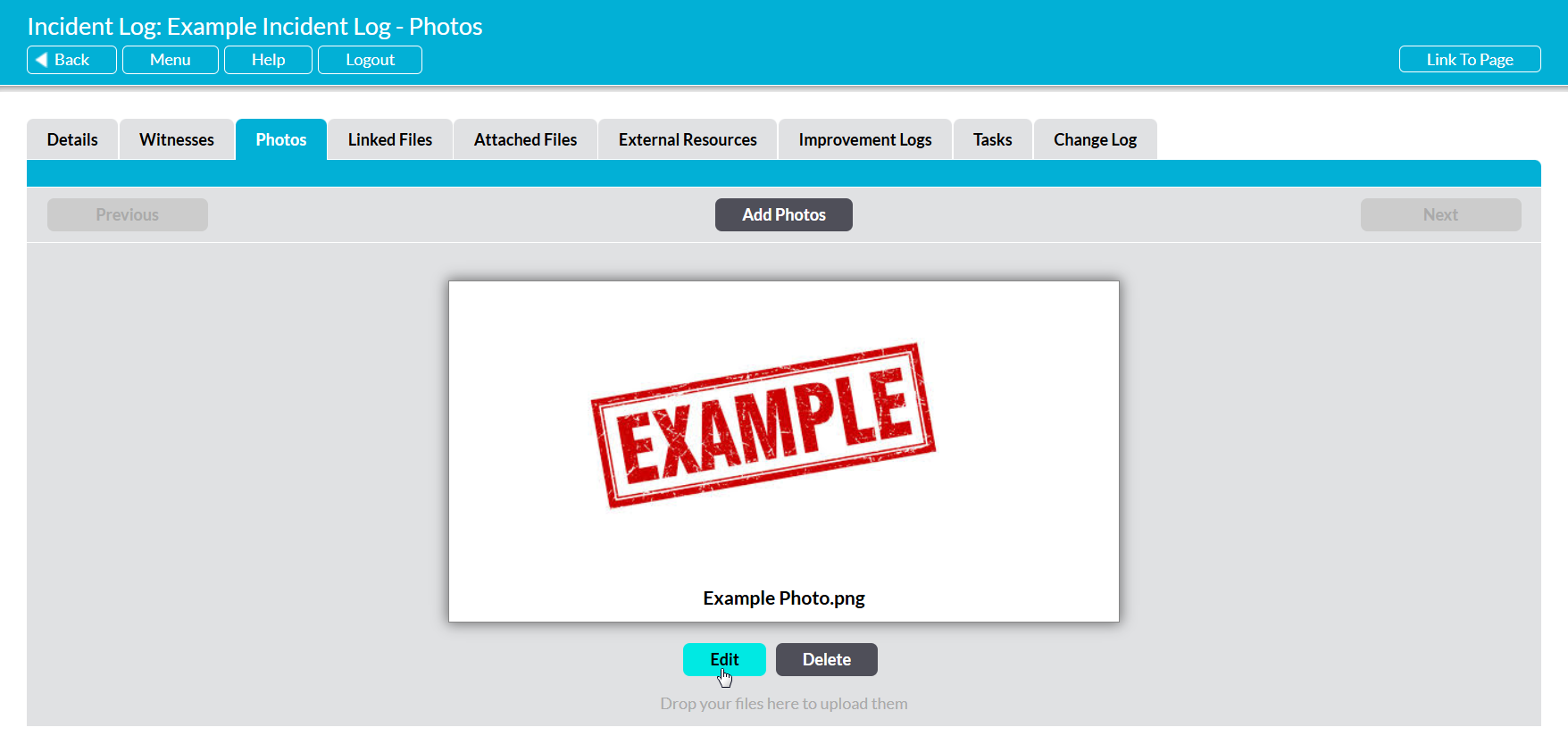
To view an Incident Log’s photos, open the relevant Incident Log and click on its Photos tab. You will be presented with a dedicated Photos area, which is used to view and manage any photos that are related to the Incident Log.
By default, Activ will automatically present you with the first photo that was added to the Incident Log, if at least one photo has been added previously. Note that you cannot ‘jump’ to a specific photo, but will instead need to view the photos in the sequence in which they were originally added. To do so, click on the Next and Previous buttons displayed at the top of the screen. Activ will take you to the photo that is directly before or after (as relevant) the photo that you are currently viewing.
Note that the Previous button will be greyed out if you are viewing the first photo in the sequence and the Next button will be greyed out if you are viewing the last photo in the sequence.

*****
Edit an Incident Log’s Photos
To edit an Incident Log’s photos, open the appropriate Incident Log on its Photos tab, and then use the Next button to locate the relevant photo within the uploaded sequence. Once you are viewing the photo you wish to update, click on the Edit button at the bottom of the screen.
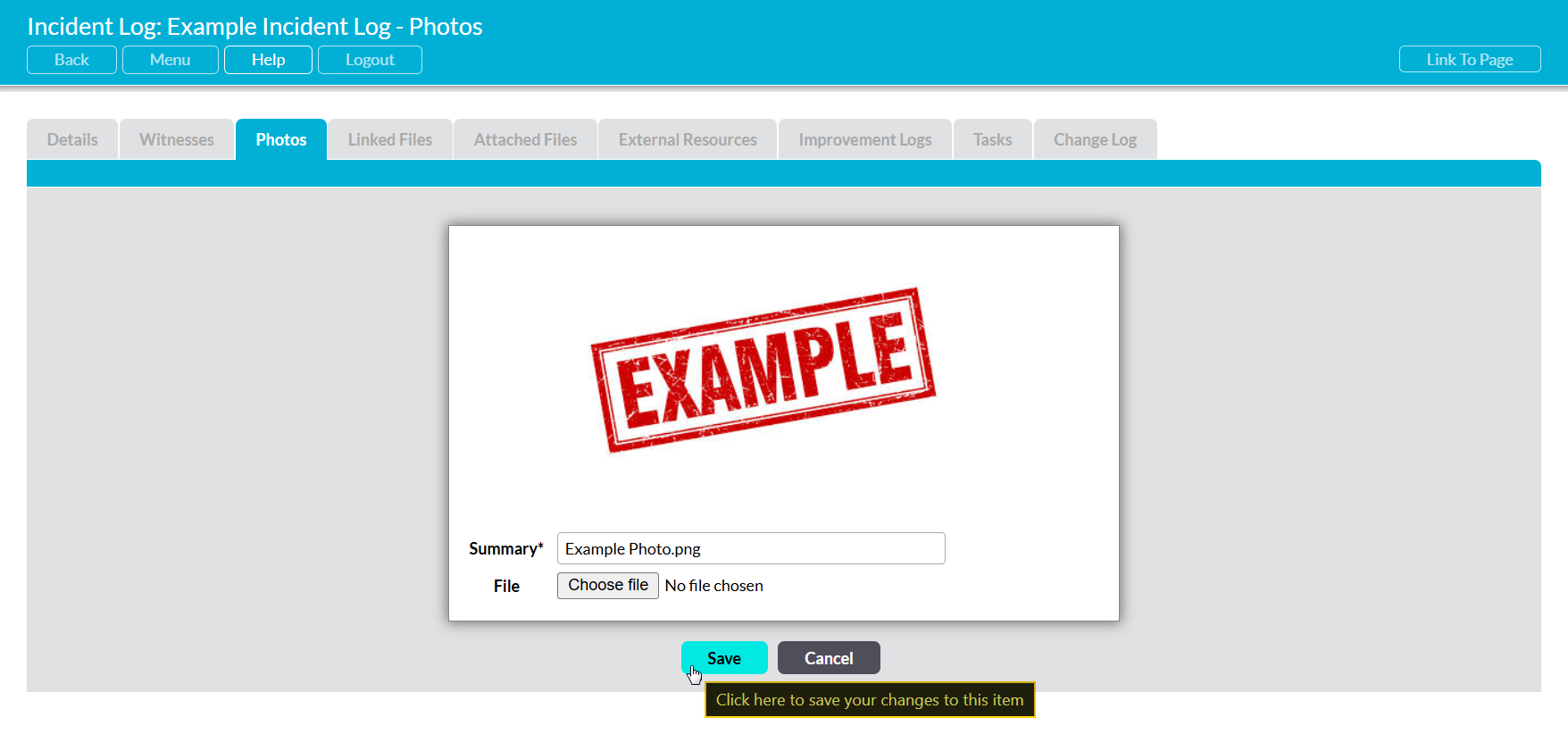
All fields will be unlocked for editing. Make the relevant edits to the record’s fields, and then click Save to finalise your changes.
*****
Delete an Incident Log’s Photos
To delete a photo from an Incident Log, open the appropriate Incident Log on its Photos tab, and then locate the relevant photo within the uploaded sequence. Once you are viewing the photo you wish to remove, click on the Delete button at the bottom of the screen.
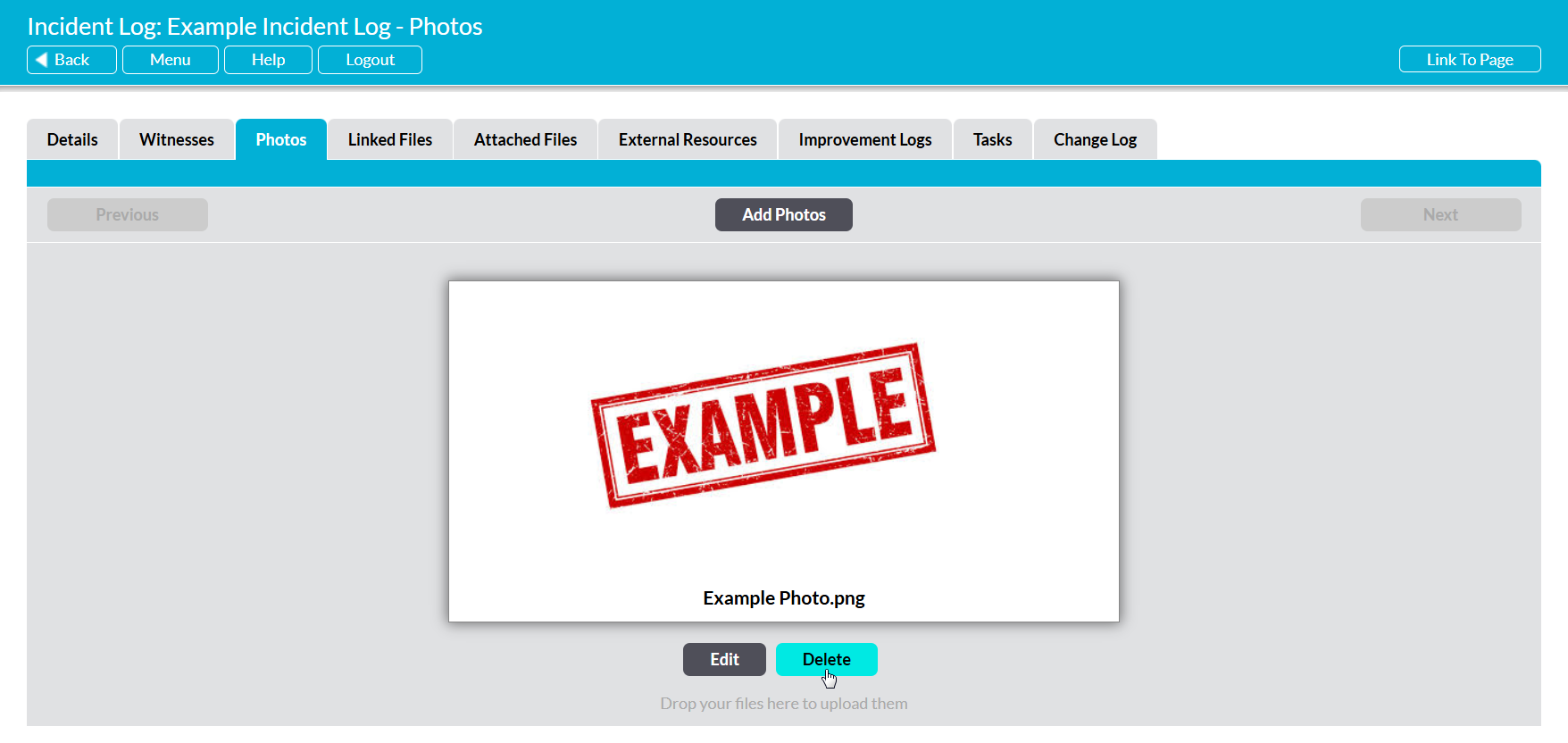
You will be prompted to confirm whether the photo should be deleted. Click on OK, and the photo will be removed from the Incident Log.
Note that deletion cannot be undone. Once a photo has been removed from an Incident Log, it will be permanently removed from your system.
