
For convenience, all attachments that have been added to an Incident Log can be managed from that Incident’s record using its Attached Files tab.
This article provides guidance on managing your existing attachments, and covers:
- Viewing an Incident Log’s Attachments
- Downloading an Incident Log’s Attachments
- Deleting an Incident Log’s Attachments
*****
View an Incident Log’s Attachments
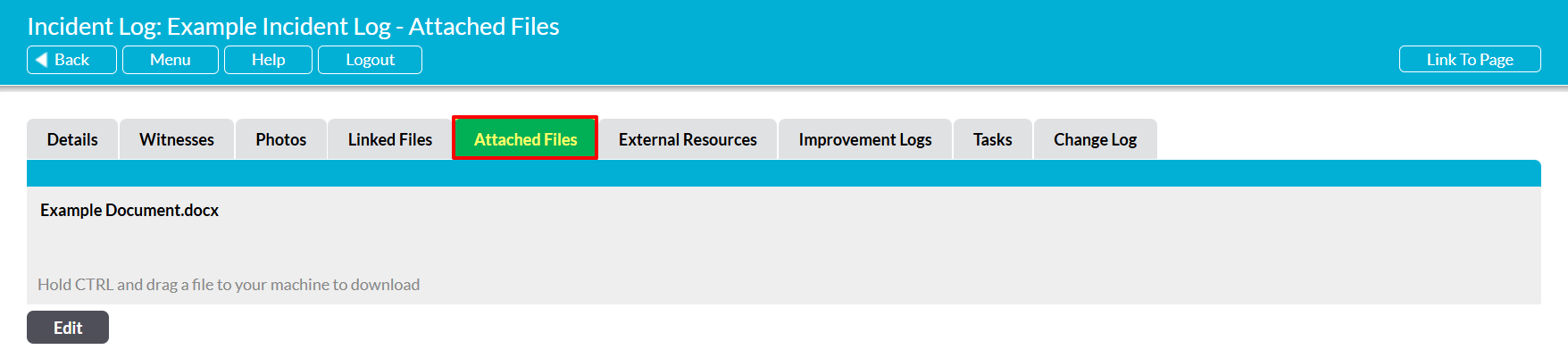
To view an Incident Log’s attachments, open the relevant Incident Log and click on its Attached Files tab. You will be presented with a dedicated Attachments area, which will contain a register of any files that are currently attached to the Incident Log. Note that attachments will be displayed in the order in which they were originally uploaded to the record.
*****
Download an Incident Log’s Attachments
To download an Incident Log’s attachments (i.e. to view their contents), open the appropriate Incident Log on its Attached Files tab. You will be presented with a list of files that are currently attached to the Incident Log. Locate the appropriate file within the register, and click on its Name to download the file to your device.

*****
Delete an Incident Log’s Attachments
To delete an Incident Log’s attachments, open the appropriate Incident Log on its Attached Files tab. You will be presented with a list of files that are currently attached to the Incident Log. Click on the Edit button at the bottom of the screen.
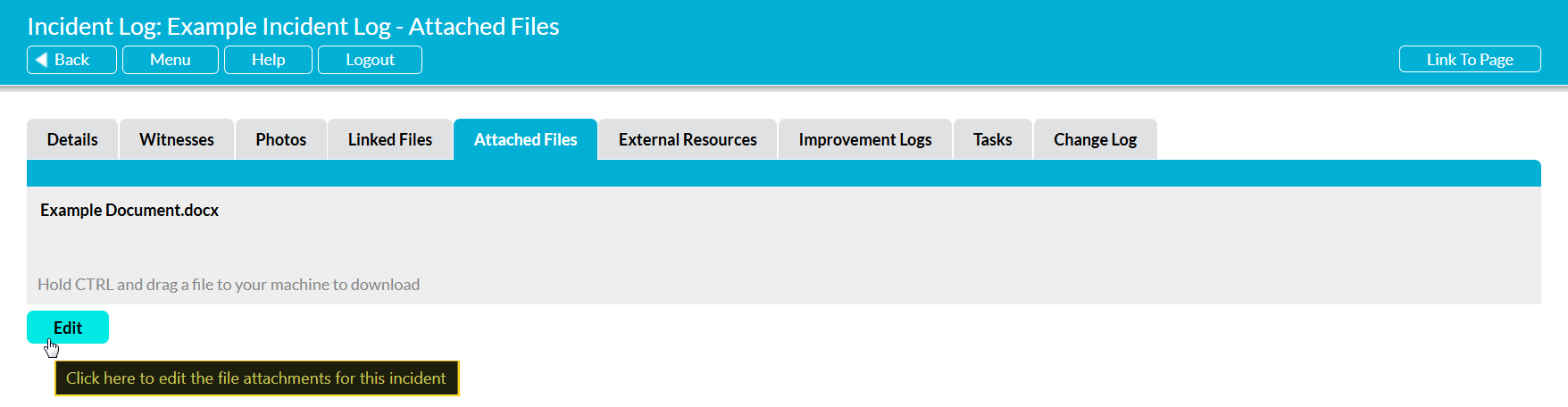
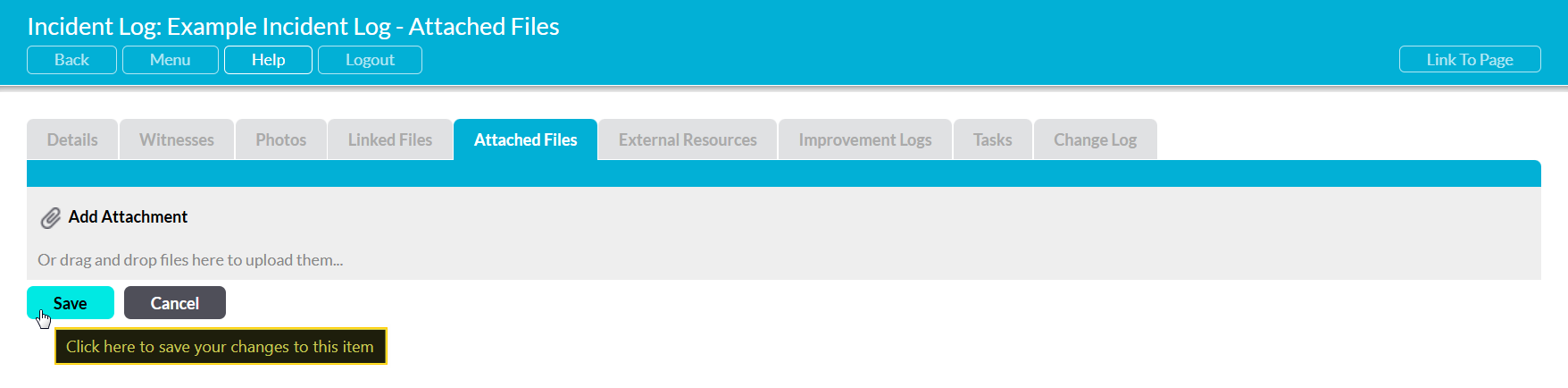
Activ will present you with the Attachments area’s editing view. Locate the appropriate attachment within the list, and then click on the red cross icon displayed to its right.

You will be prompted to confirm whether the attachment should be deleted. Click on OK, and the attachment will be removed from the area’s editing view. Click on Save to finalise your changes, removing the attachment from the record.
Note that deletion cannot be undone. Once an attachment has been deleted from an Incident Log, it will be permanently removed from your system.
