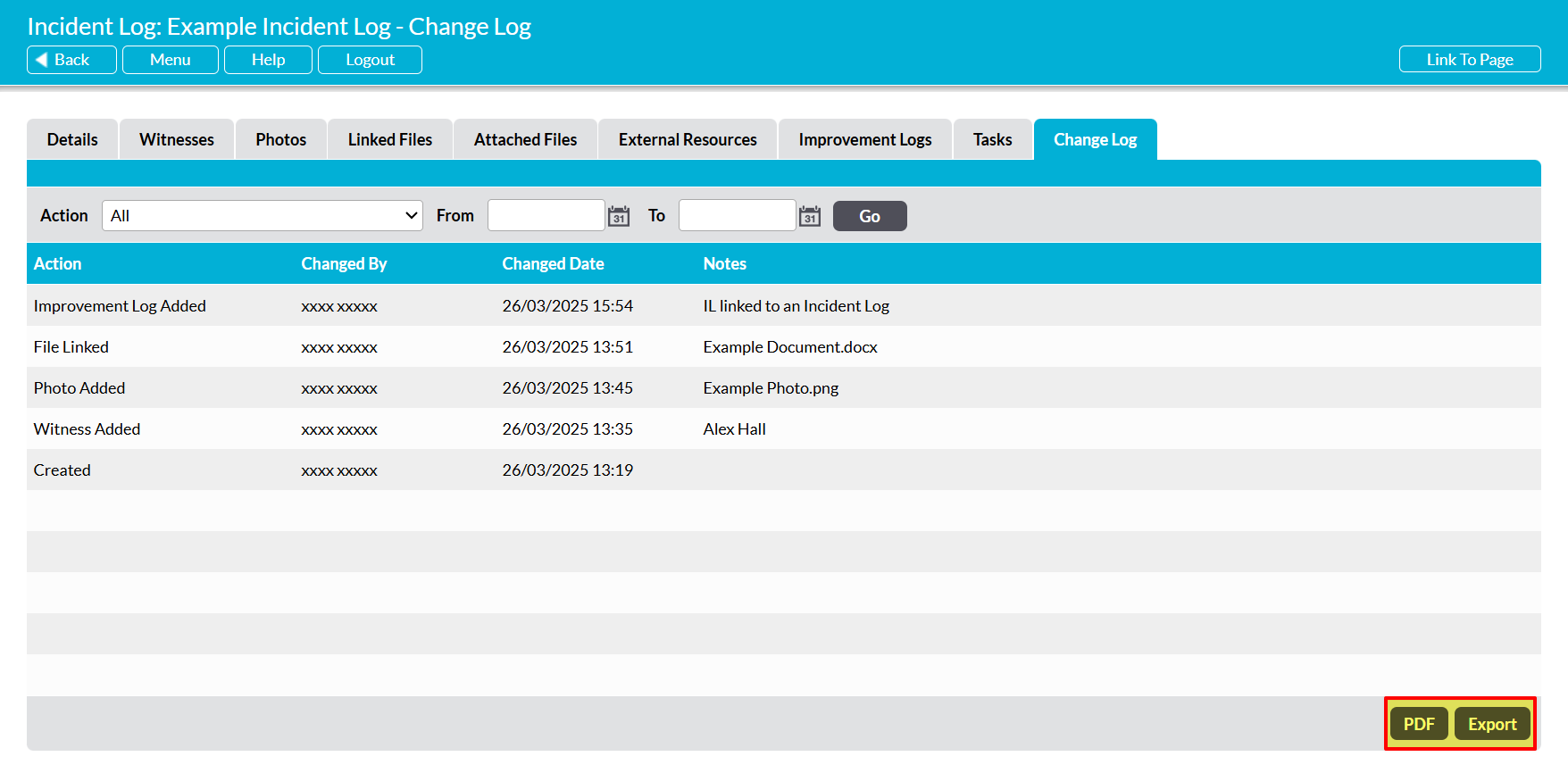
Activ automatically maintains a complete record of changes that are made to individual Incident Logs, providing you with a detailed audit trail of each Incident Log’s history. This enables you to identify the changes that have been made to an Incident Log throughout its life cycle, and to confirm who made the changes and when.
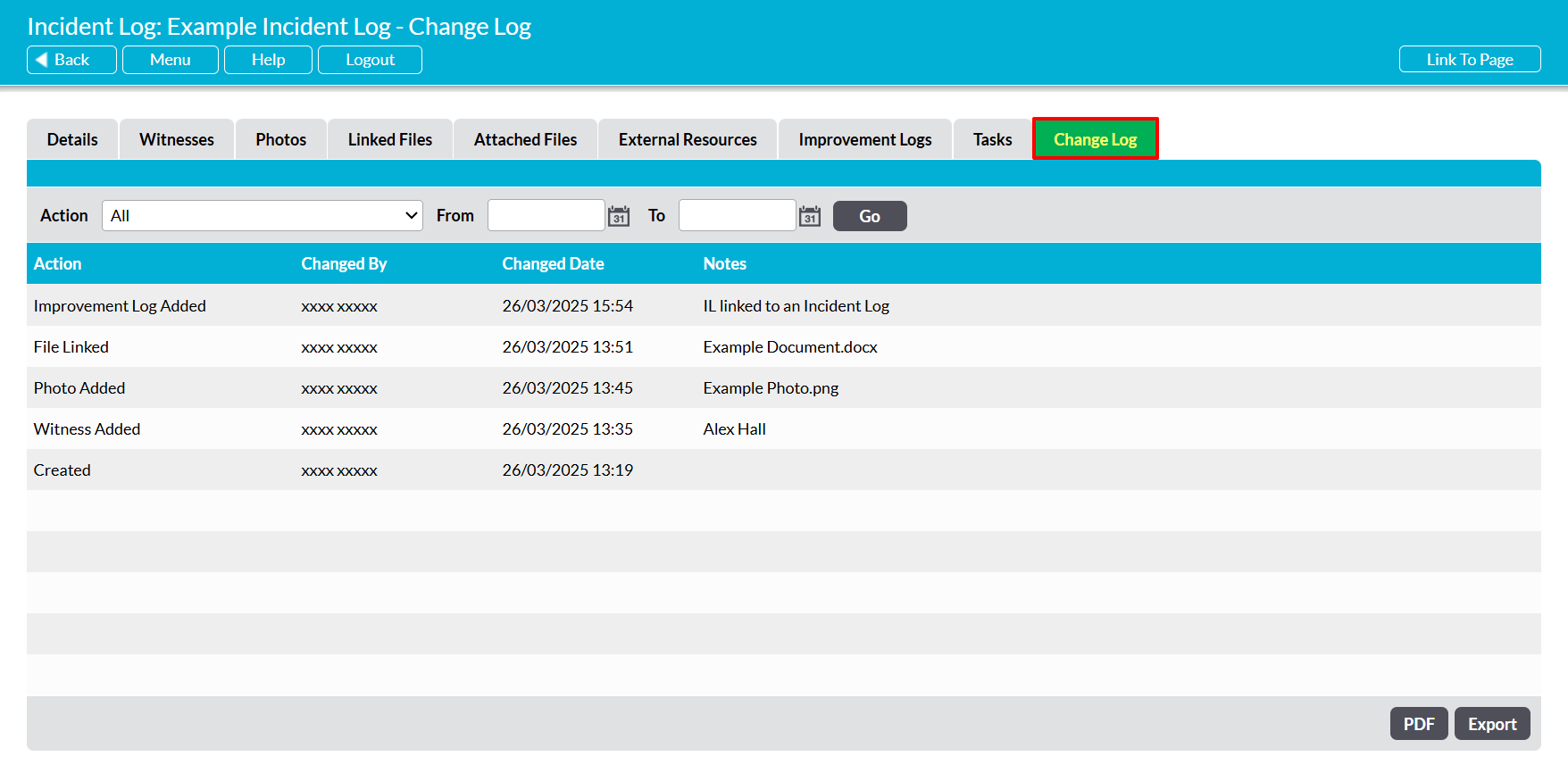
To view an Incident Log’s Change Log, open the Incident Log and click on its Change Log tab.
You will be presented with a chronological register of all changes that have been made to the Incident Log, with the most recent changes listed first. Each change is housed in its own line within the register, and provides a record of who made the change, and when the change was made. In addition, any lines relating to changes to the Incident Log’s Witnesses tab, Photos tab, or Linked Files tab will display the name of the file/witness that was updated, and any changes relating to the Incident Log’s Status will display the new Status that was provided.
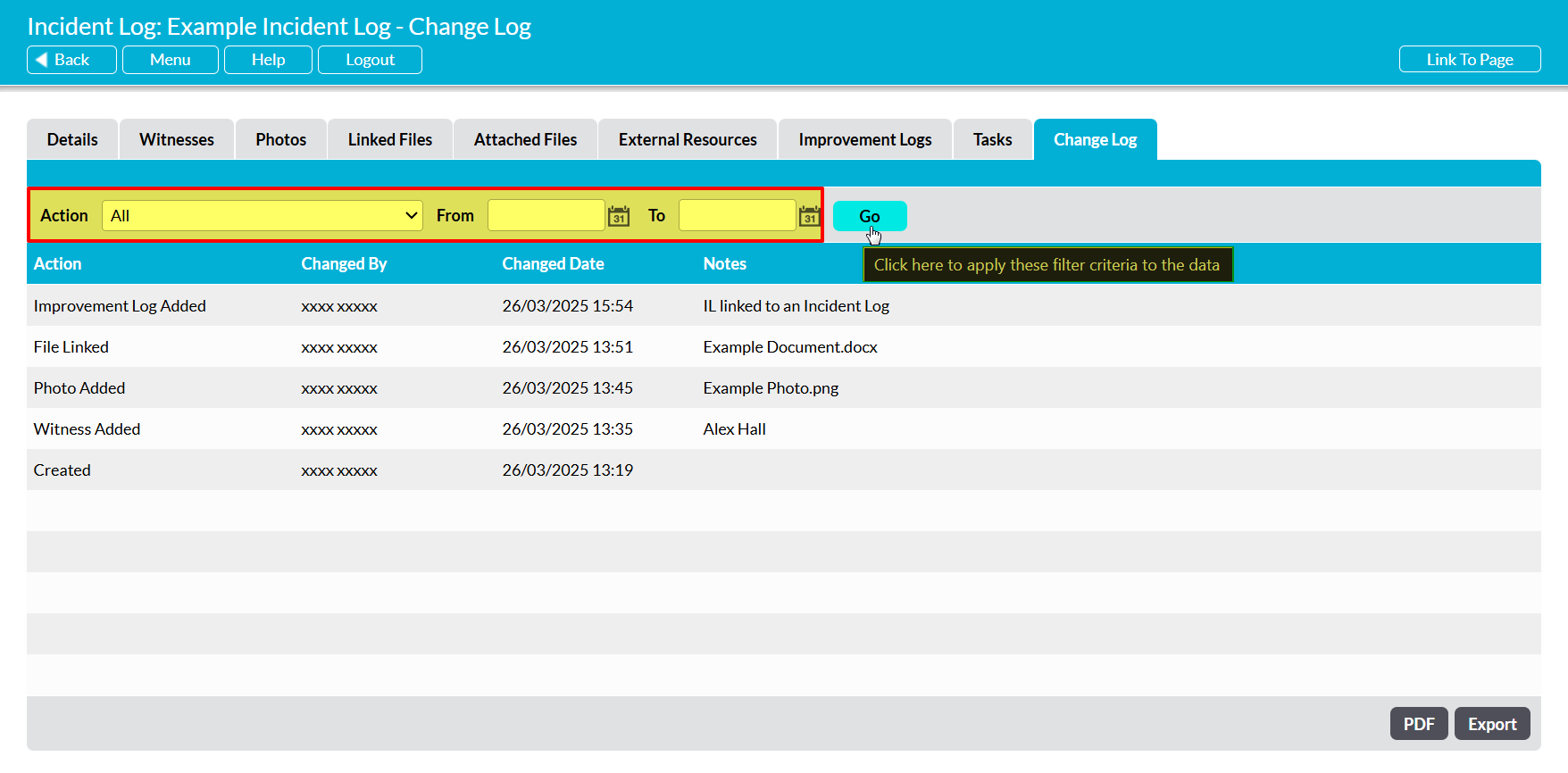
By default, all changes that have been made to the Incident Log will be included within the register. However, you also have the option to filter the Change Log by the ‘type’ of change that has been made (i.e. general updates, changes to the Witnesses tab, etc), and/or when the changes were made. To do so, use the filters at the top of the screen to specify your search criteria, and then click Go.
In addition, Activ provides you with the option to export the Change Log’s data as a PDF or CSV file using the PDF and Export buttons at the bottom of the screen.