
For convenience, all Improvement Logs that have been raised from or linked to a Communication can be managed from that Communication’s record using its Improvement Logs tab.
This article provides guidance on managing your Communication’s Improvement Logs, and covers:
- Viewing a Communication’s Improvement Logs
- Exporting a Communication Improvement Logs
- Unlinking Improvement Logs from a Communication
*****
View a Communication’s Linked Improvement Logs
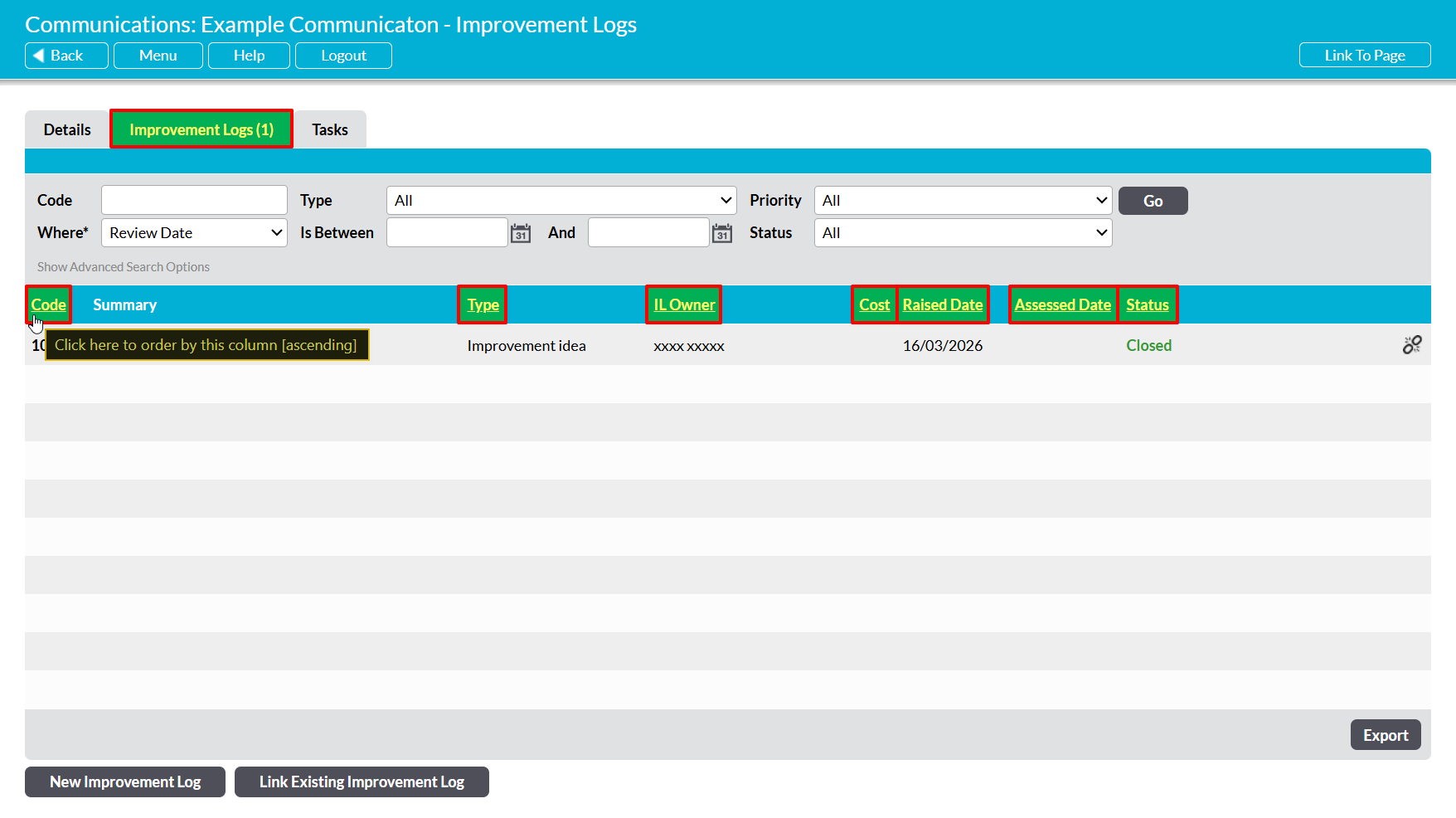
To view a Communication’s linked Improvement Logs, open the Communication and click on its Improvement Logs tab. This will open a register of all Improvement Logs that are currently linked to the Communication. By default, Improvement Logs will be listed chronologically by their Code, but you also have the option to order them by Type, IL Owner, Review Date, Cost, and Status by clicking on the corresponding column headings.
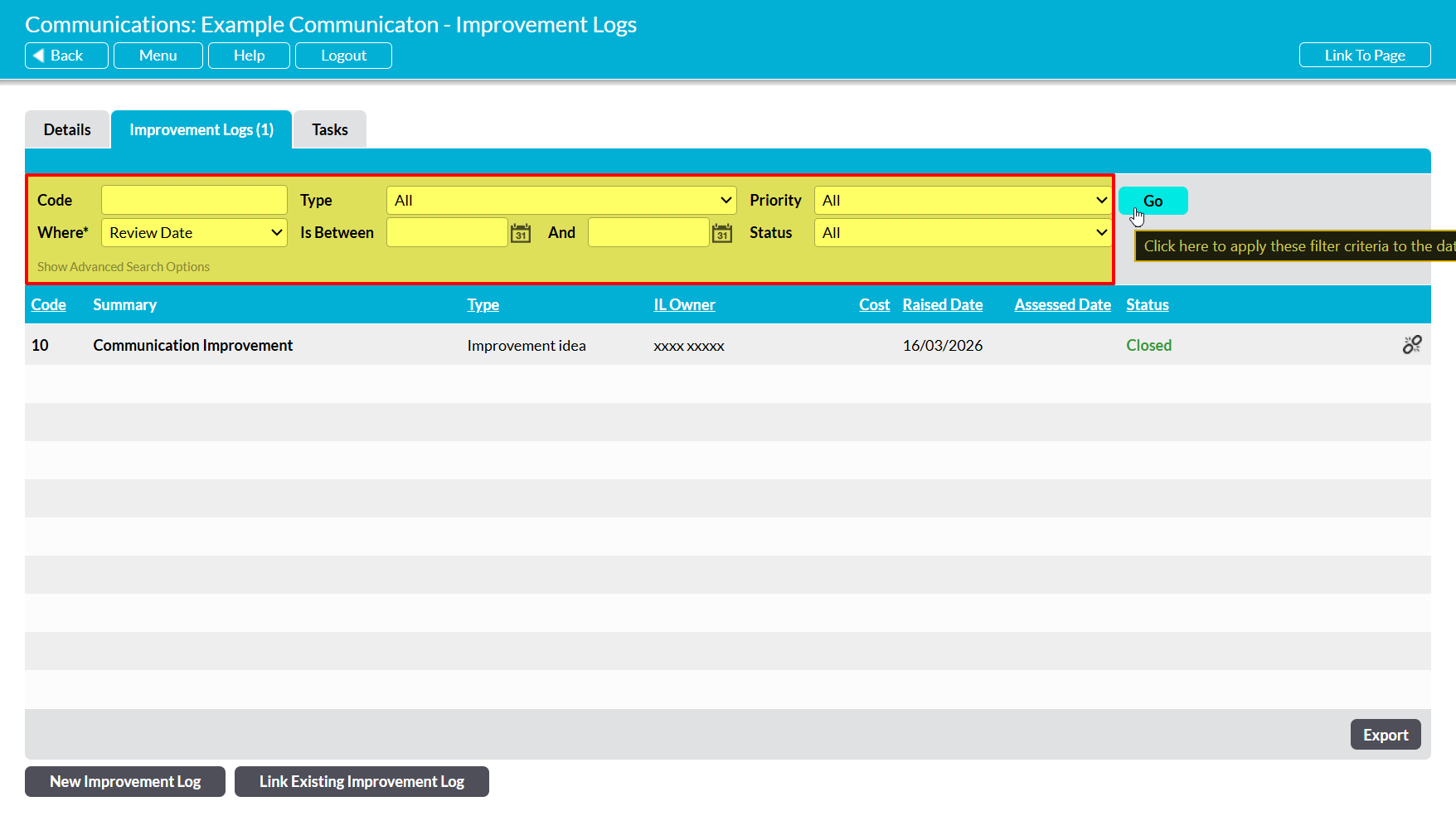
In addition, you can narrow the list of Improvement Logs shown within the register using the search options at the top of the screen.
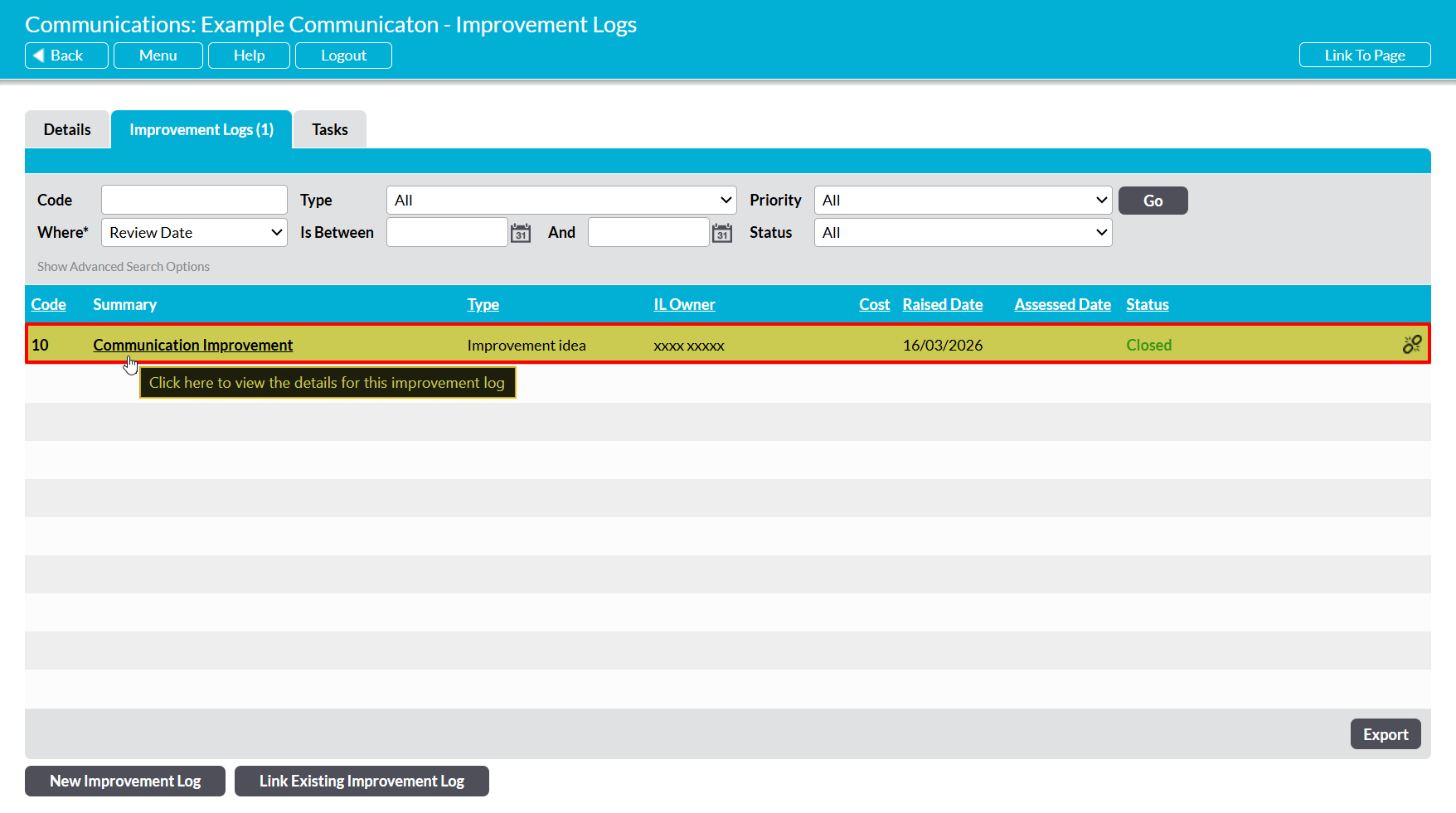
To open an Improvement Log and view its details, click on its Summary.
*****
Export a Communication’s Linked Improvement Logs
Activ provides you with the option to export an individual Communication’s Linked Improvement Logs from your system as a CSV file. This file can be stored or printed for use outside of Activ.
To export a Communication’s Improvement Logs, open the Communication on its Improvement Logs tab and click on the Export button at the bottom of the screen.

The CSV file will automatically download to your computer.
Note that download behaviour is controlled by your browser settings. If the CSV file does not download as expected, we recommend that you check your browser settings to ensure that they are properly configured.
*****
Unlink an Improvement Log from a Communication
If an Improvement Log is incorrectly linked to a Communication, or is no longer relevant to the Communication, then you have the option to break the link to remove the Improvement Log from the Communication’s record without removing it from your system. To do so, open the Communication on its Improvement Logs tab and locate the appropriate Improvement Log within the register, then click on the Unlink icon to the right of its record.
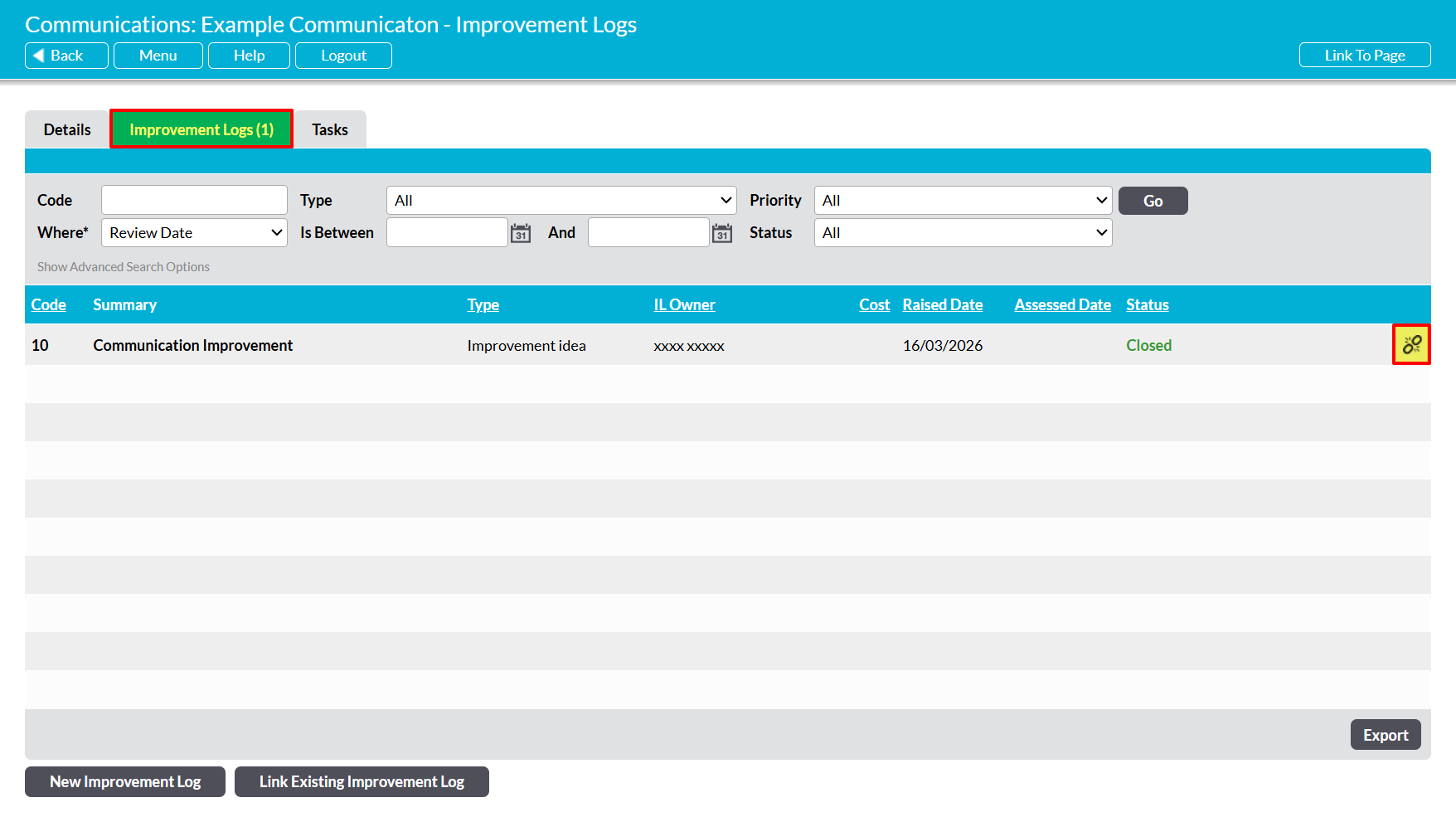
You will be prompted to confirm whether the link should be broken. Click on OK and the Improvement Log will be unlinked from the Communication.
