
ISO Certification Checklists are displayed on a single page within your Activ system and are accessed from the main menu via the ISO Certification Manager menu item. If you have multiple ISO Checklists with differing Audit dates (i.e: your original system plus additional Standards added after purchasing Activ), these will be displayed at the top of the page as individual tiles. Clicking these tiles enables you to filter your Task Checklist by individual ISO Projects, whilst clicking on the All Standards tile will display all ISO Tasks that are currently live within your system.
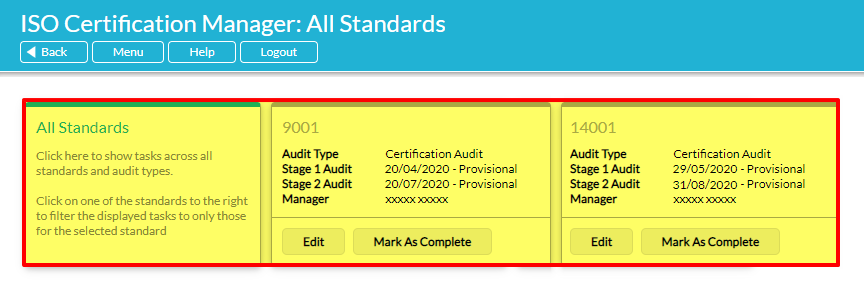
If your system only contains one Standard or was created as a multi-Standard system, this view will be replaced with a single ISO Checklist tile that corresponds to the appropriate Standard or Standards. Additional tiles will appear if further Standards are added to your system at a later date.
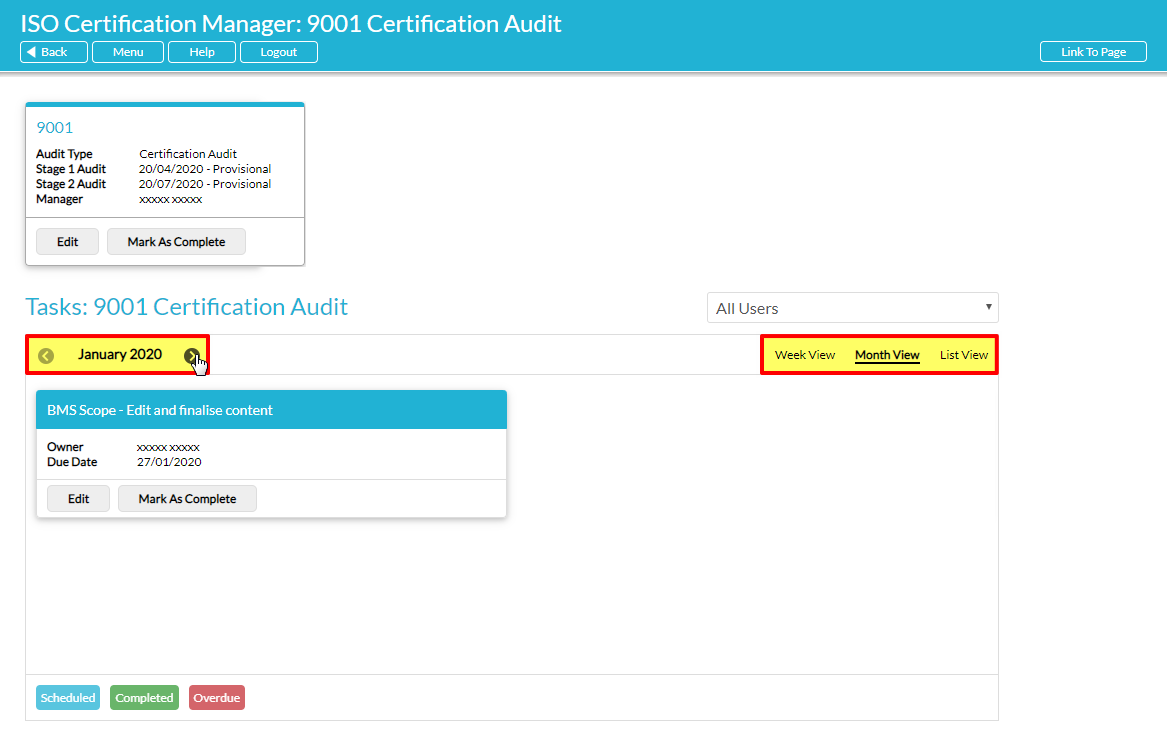
By default, ISO Checklists for all Standards are displayed when you open the ISO Certification Manager, and the panel is opened in Month View to display the ISO Tasks that are planned for the current month. However, Activ also provides you with the option of switching your Checklist to Week View, which will show you the ISO Tasks planned by week, and to List View, which provides a full list of the ISO Tasks that are associated with your selected Standard. In these Week and Month views, you can scroll through your planned ISO Tasks using the date selector to the left of the panel.
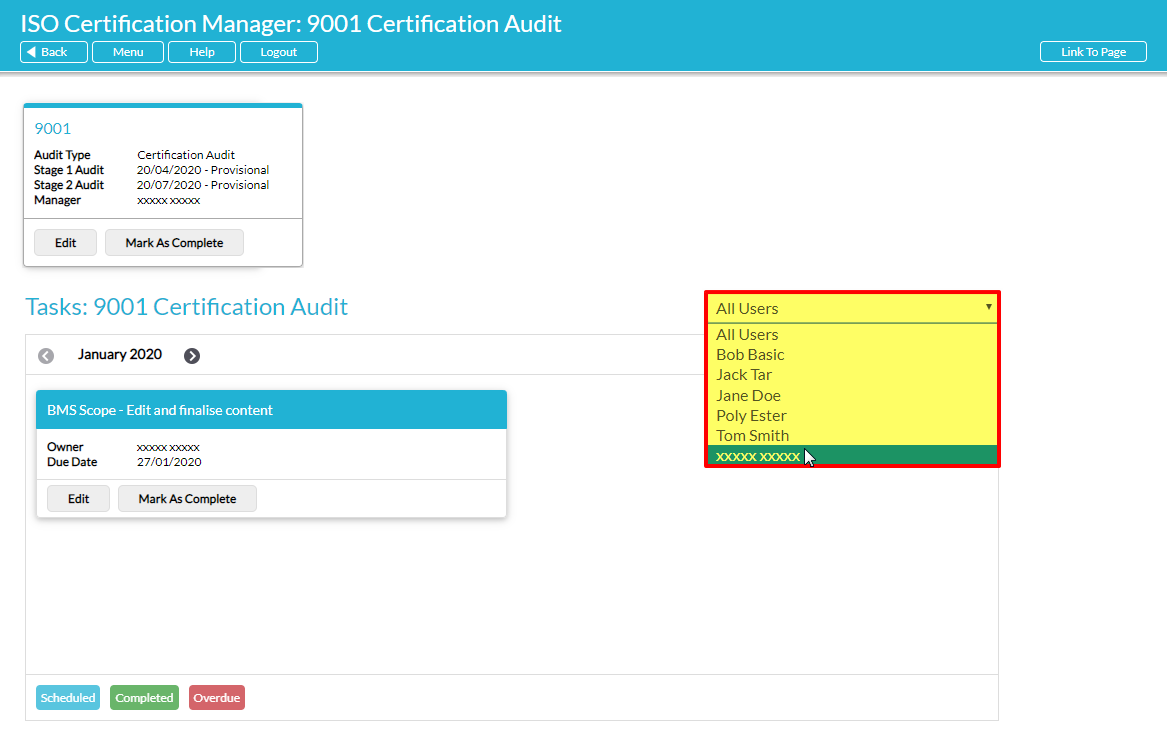
If you have ‘Admin’ permissions for the Tasks module, your default view of each Task Checklist will show all ISO Tasks that are assigned to all users. You do however have the option to filter your ISO Tasks by Assigned User, enabling you to review an individual user’s progress against their assigned ISO Tasks.
If you do not have ‘Admin’ permissions for the Tasks module, you will only be able to view ISO Tasks that have been assigned to you. If you have no ISO Tasks for a given week or month, you will be presented with a message informing you that there are no Tasks for you to complete during the selected time period.
