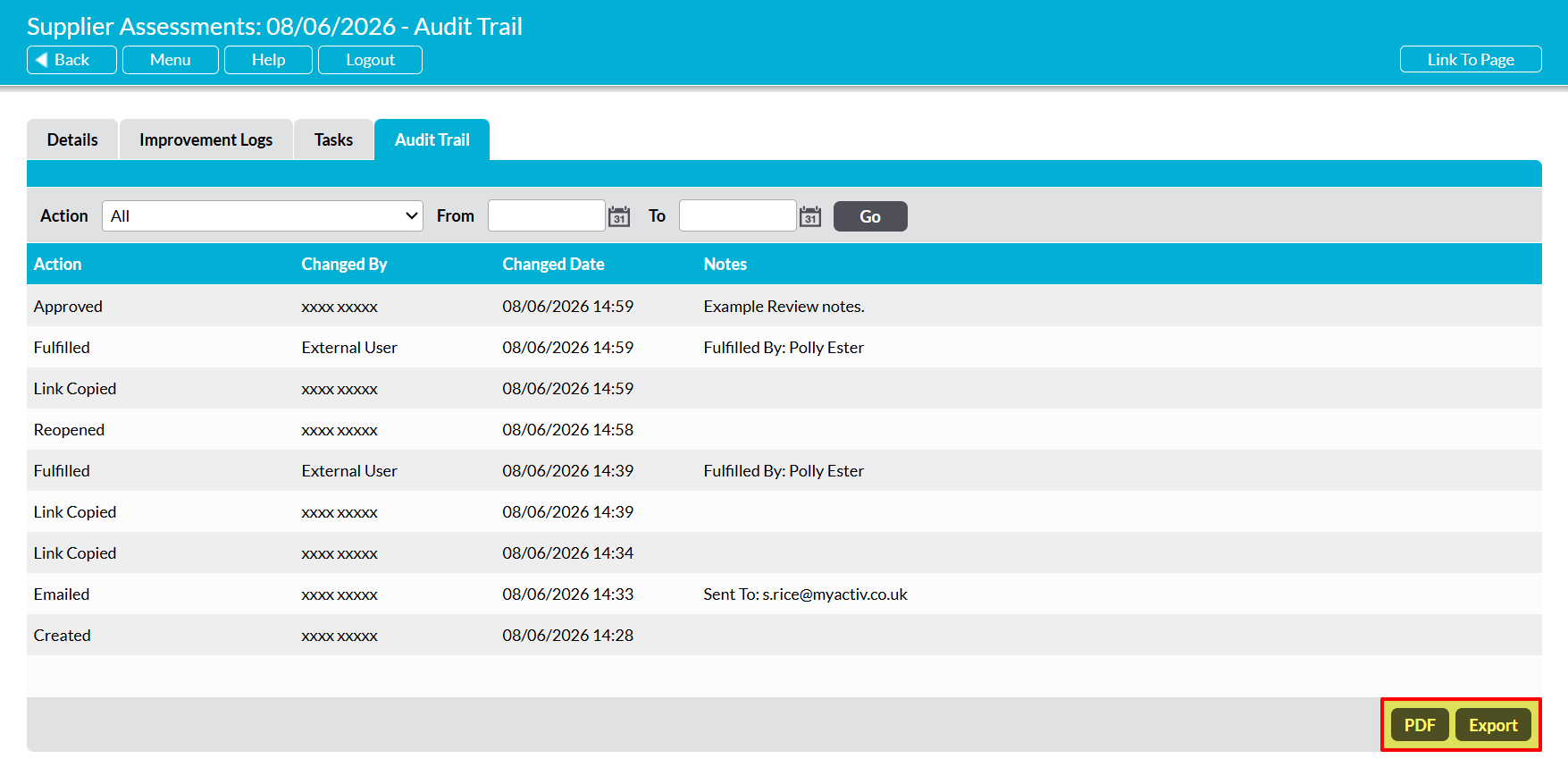
In some cases, you may find that you have a need to review the history of key actions that relate to a given Supplier Assessment: for example, so that you can identify when and how many times the Assessment was sent, or so that you can demonstrate appropriate control over your Assessments to an external Auditor. To assist with this, Activ automatically logs key information relating to each Supplier Assessment’s ‘lifecycle’, and provides a record of this information within a dedicated Audit Trail.
Note that the Audit Trail is not a ‘version history’, and does not record changes to the Assessment’s responses. Instead, it tracks:
- the date on which the Assessment was originally created;
- the date on which the Assessment’s link was copied, and by whom;
- the date on which the Assessment was emailed, who sent it, and to whom;
- the date on which the Assessment was Fulfilled, and by whom
- the date on which the Assessment was re-opened (if applicable)
- the date on which the Assessment was Approved or Rejected, and by whom; and
- the dates on which the Assessment’s core Details (i.e. Reviewer, Fulfiller, etc) were updated, and who updated them
Also note that a full Audit Trail is only available for Assessments created after 7th June 2026, when the Audit Trail was originally introduced. Assessments existing prior to this date will only contain a partial Audit Trail, as much of the information above was not logged before this point.
*****
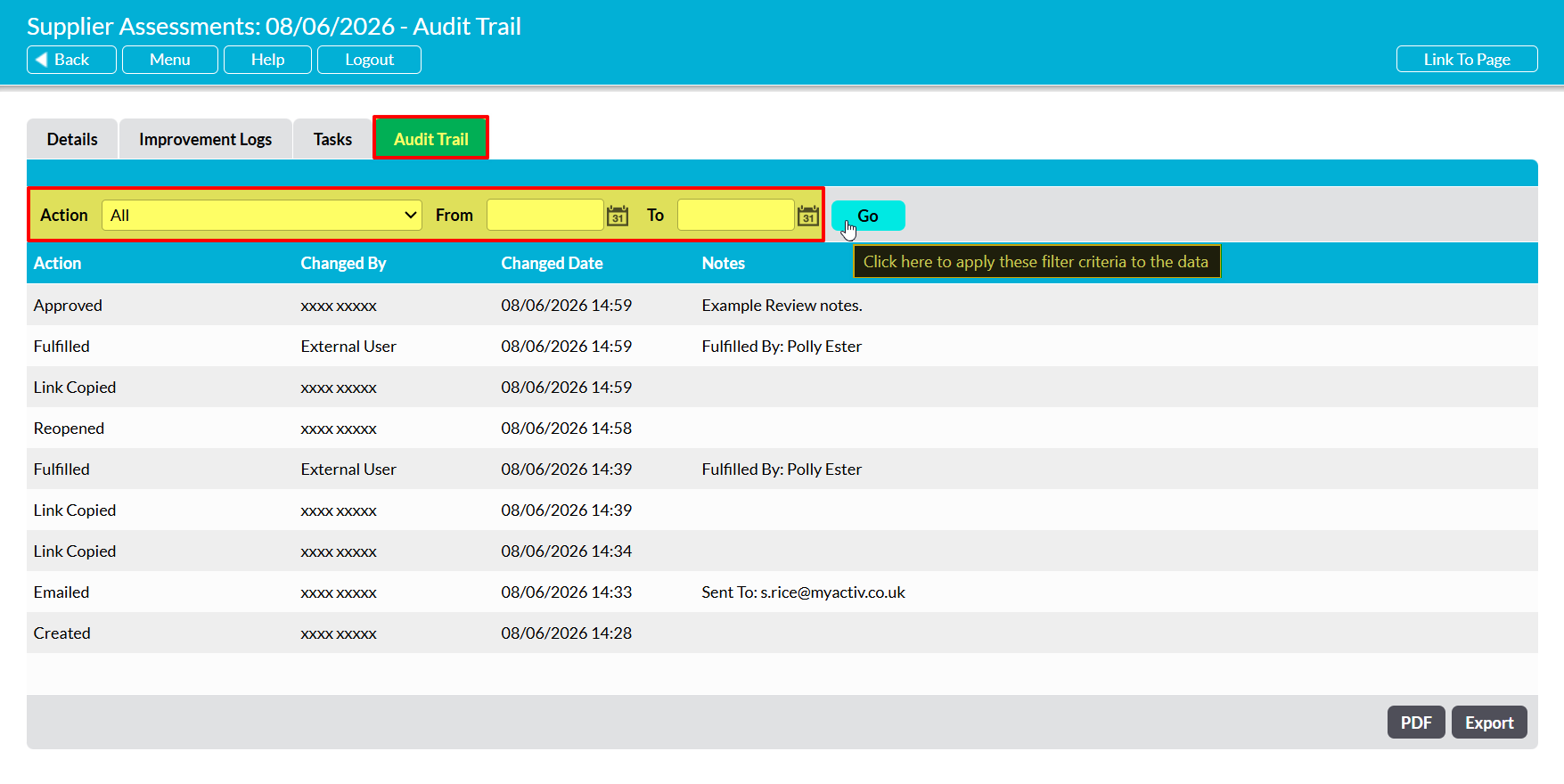
To view a Supplier Assessment’s Audit Trail, open the Assessment and click on its Audit Trail tab.
You will be presented with a chronological record of the information listed above, with the most recent actions listed first. Each record is houses in its own row in the record, and includes a summary of when the change occurred, who was responsible, and some accompanying notes detailing relevant supporting information (e.g. who the Assessment was emailed to if it has been emailed; the name of the Fulfiller if it was externally Fulfilled; etc).
By default, the Assessment’s full history of key actions will be included within the register. However, you also have the option to narrow the information shown using the filters at the top of the screen.
Additionally, Activ provides you with the option to download the Audit Trail as a PDF document or CSV file for use outside of your system, if required. To do so, click the corresponding buttons at the bottom of the screen.