
Note that you must have ‘Admin’ permissions to the Tasks module, or be assigned to the Task, to edit or re-assign an ISO Task.
To edit or re-assign an ISO Task, locate the Task within the Task Checklist, and click on the Edit button displayed within its panel.
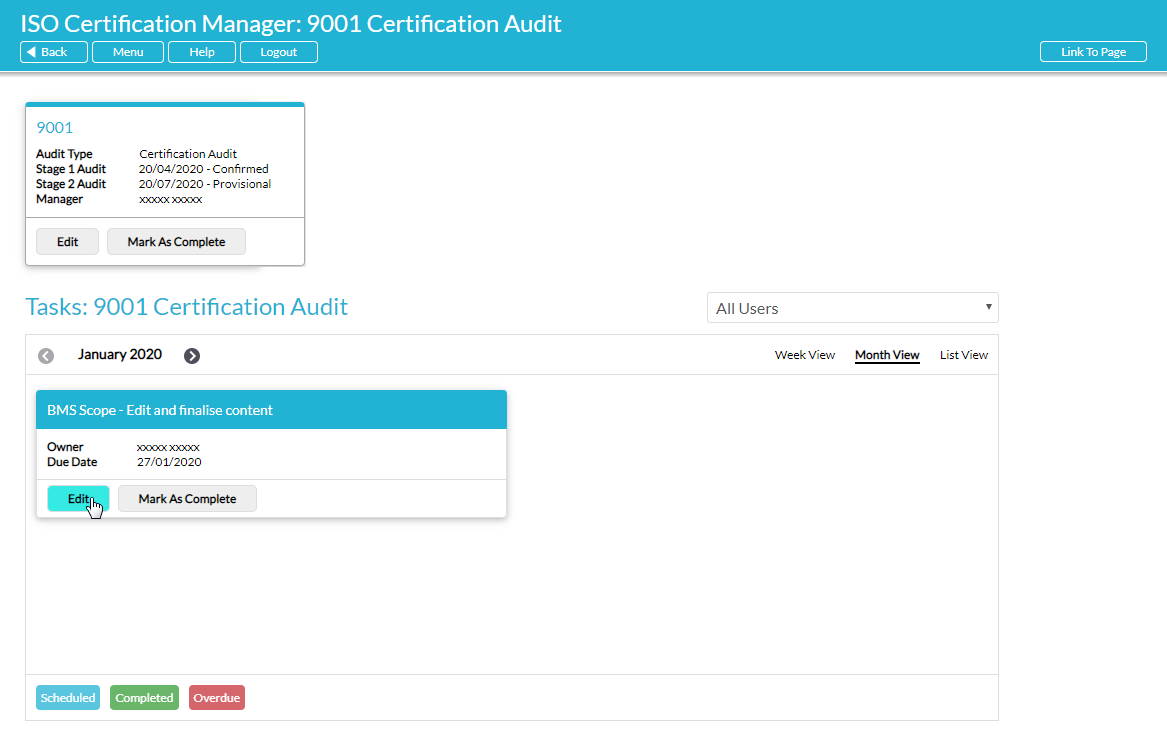
Alternatively, open the ISO Task and click on the Edit button within its Details.

In both instances, the ISO Task will be opened for editing.
Each ISO Task’s content is automatically copied from Activ’s database when the corresponding Checklist is added to your system, and as such most fields are locked and cannot be modified. However, four fields will be available for editing:
- Status* – use the dropdown menu to specify whether the Task is currently ‘Open’ or ‘Completed’.
- Priority* – use the dropdown menu to specify a priority for this Task. Note that the available priorities are drawn from your Tasks module’s Settings area, and that by default all ISO Tasks will be provided with the ‘medium’ priority.
- Assigned To* – use the dropdown menu to re-assign the Task to another user. Note that users must have at least ‘Edit’ permissions to the Tasks module to appear within this dropdown.
- Due Date* – use the calendar icon to re-schedule the Task, if required.
Note that, although you can change the Due Date for any ISO Task that is assigned to you, these Due Dates will automatically be re-adjusted to fit into the Checklist’s allotted time if your Stage One or Stage Two Audit Dates are adjusted. However, you will still be able to edit individual ISO Task Due Dates as appropriate after any changes to the Checklist’s Audit Dates have been made.
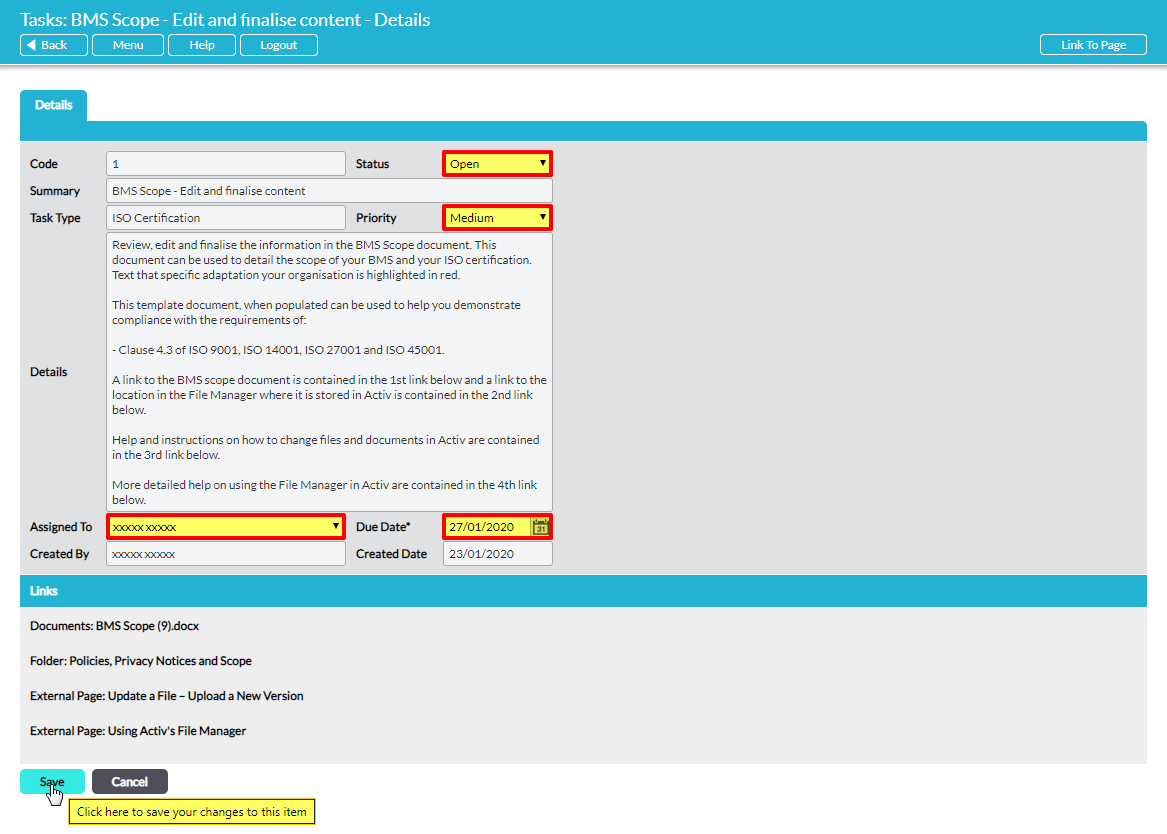
Once you have made the necessary edits to your ISO Task, click Save to finalise your changes.
