
If your package includes the Tasks module, the Communication area’s functionality is expanded to allow you to raise new Tasks against your Communications, and to link existing Tasks to them. As with any other Task in your system, these Tasks can be assigned to individuals or groups of users, and Activ will automatically notify each user when the Task is assigned to them, and when its due date is nearing (as long as they have the appropriate Notifications settings enabled). This feature allows you to identify and manage the supporting actions that may arise from your communications with your employees, customers, and/or suppliers.
For convenience, this article is split into two sections:
*****
Raise a New Task from a Communication
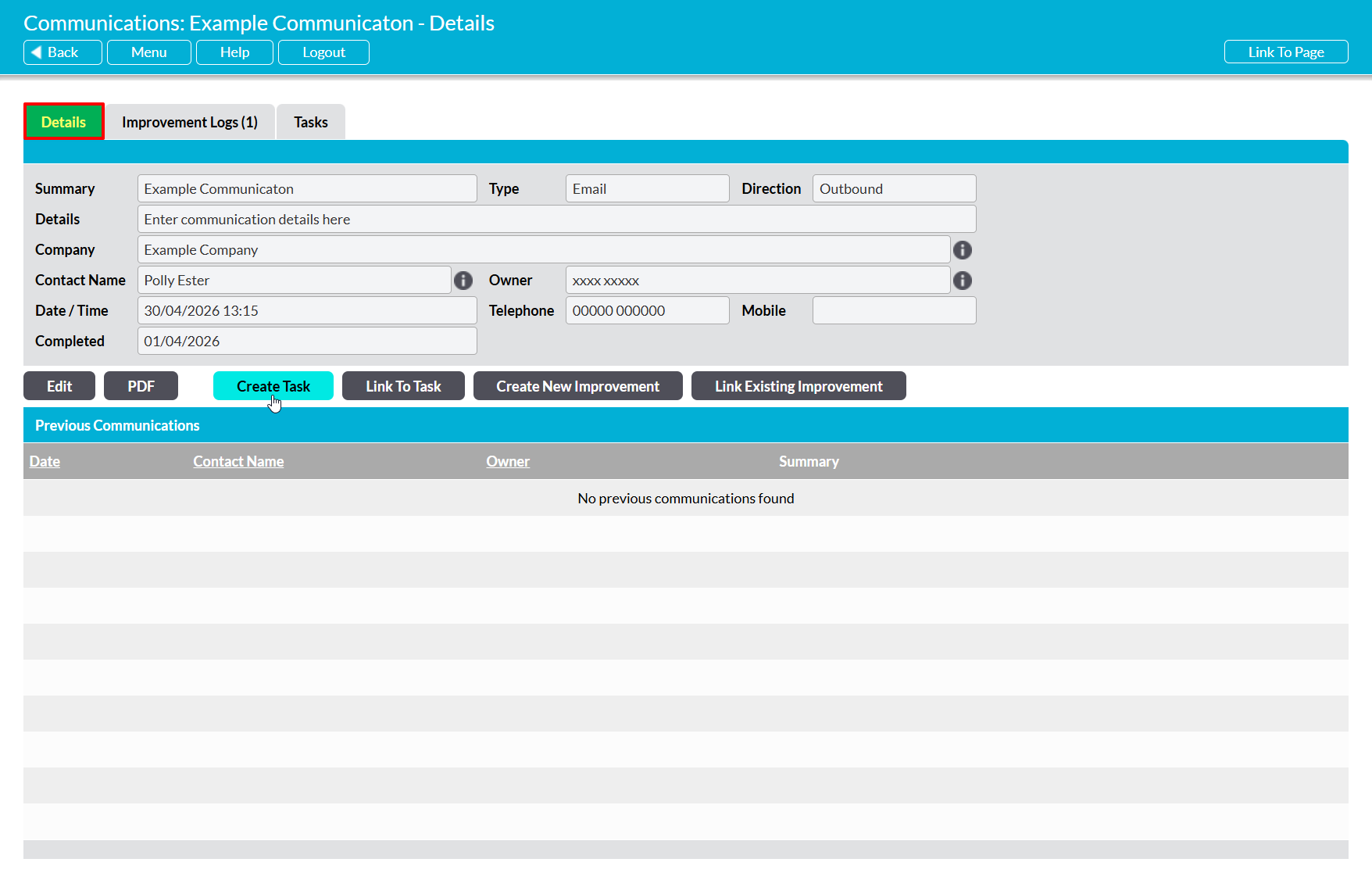
To raise a new Task from a Communication, open the Communication on its Details tab and click on the Create Task button.
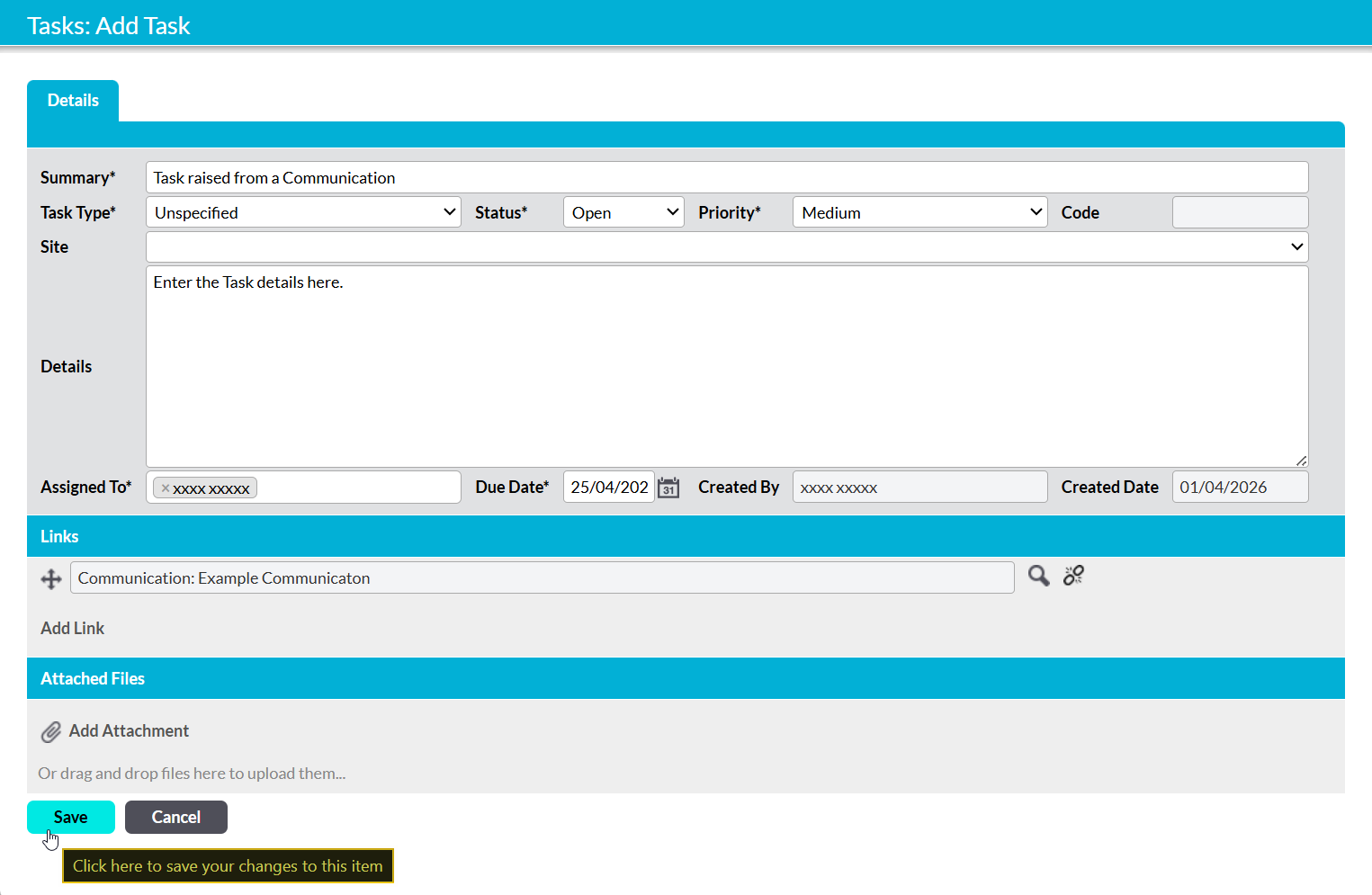
Activ will open a popup window containing a new Add Task form. Most fields within the form will be blank, but the Communication will automatically be linked within the Tasks’ Links section.
Enter the additional details as appropriate (see Create a Task for guidance), and then click Save.
You will be returned to the Communication’s Details tab, and your new Task(s) will be added to the main Tasks register. In addition, a record of the Task(s) will be stored in the Communication’s Tasks tab.
*****
Link an Existing Task to a Communication
To link an existing Task to a Communication, open the Communication on its Details tab and click on the Link to Task button.

This will open a popup containing a register of your system’s existing Tasks. Use the tick boxes to the right of each Task to select the appropriate items from the list, noting that you can link multiple Tasks at once if necessary. Click on Save once you have made your selection.

You will be returned to the Communication’s Details tab, and the Communication will now be displayed in the Links section of the chosen Task(s). In addition, the Task(s) themselves will be recorded on the Communication’s Tasks tab.
