
If your package includes the Tasks module, the Incident Log’s functionality is extended to allow you to raise new Tasks against your Incidents, and to link existing Tasks to Incident Logs. This feature allows you to identify and manage the supporting actions that may be required to fully resolve an Incident and/or correct any damage done by the Incident. For example, you may use Tasks to:
- assign someone to review and update relevant safety documentation;
- assign someone to complete a risk assessment of the Incident Site, or review existing risk assessments for the site;
- assign someone to check maintenance logs to ensure that relevant equipment has been properly maintained;
- assign someone to manage specific repair or clean-up jobs at the Incident Site;
- assign someone to check in with any personnel who were directly impacted by the Incident, or to communicate with customers and other stakeholders;
- assign someone to review training records and arrange any necessary refresher training; etc.
For convenience, this article is split into two sections:
*****
Raise a new Task from an Incident Log
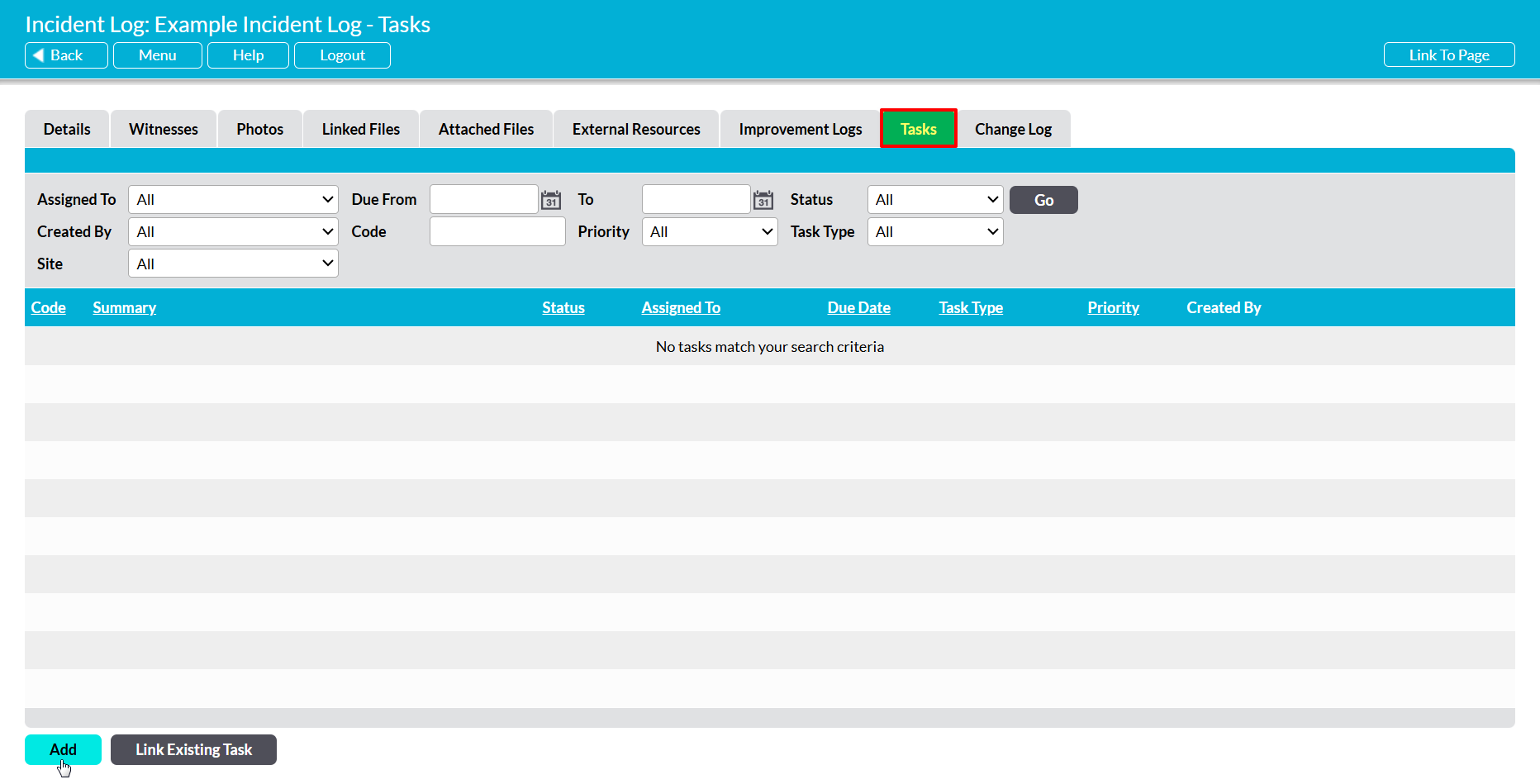
To raise a new Task from an Incident Log, open the Incident Log and click on its Tasks tab. You will be presented with a dedicated Tasks area, which is used to view and manage any Tasks that are currently linked to the Incident Log. Click on the Add button at the bottom of the page.
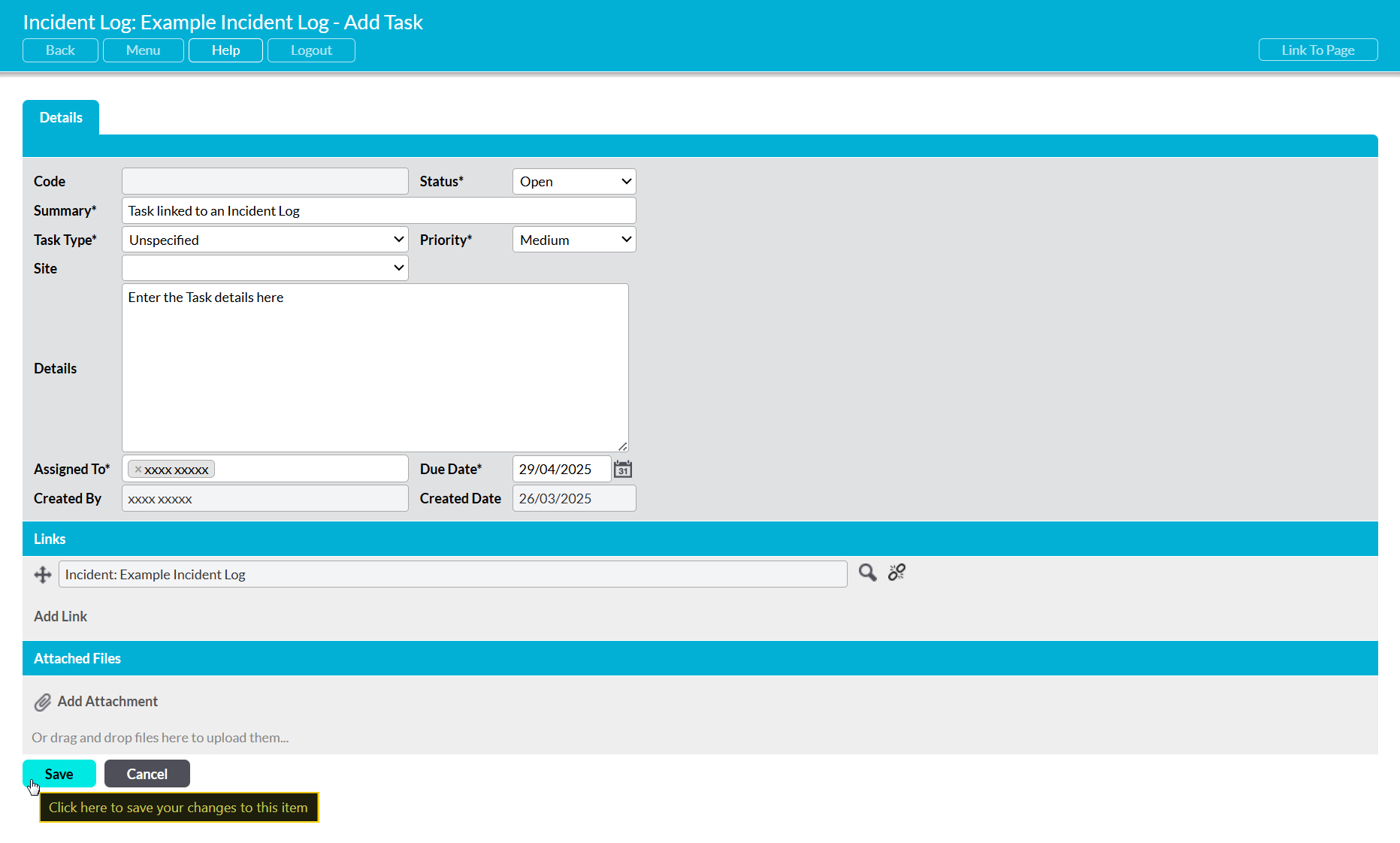
You will be presented with a popup window containing a new Add Task form. Most fields within the form will be blank, but the Incident Log will automatically be linked within the Task’s Links section.
Enter the additional details as appropriate (see Create a Task for guidance), and then click Save.
*****
Link an Existing Task to an Incident Log
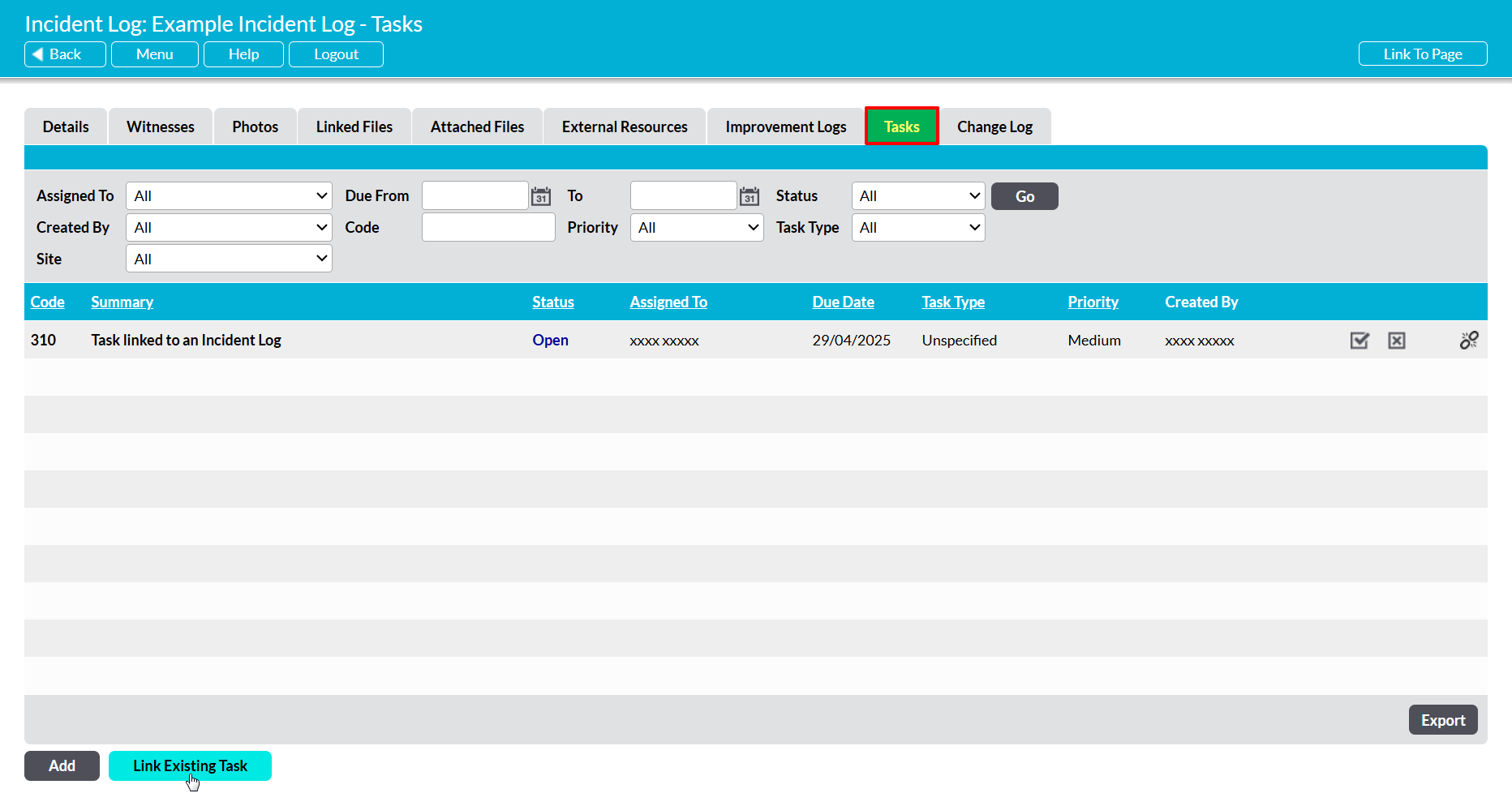
To link an Incident Log to an existing Task, open the Incident Log and click on its Tasks tab. You will be presented with a dedicated Tasks area, which is used to view and manage any Tasks that are currently linked to the Incident Log. Click on the Link Existing Task button at the bottom of the screen.
You will be presented with a popup displaying the Tasks that are currently recorded in your system. Use the tick boxes to the left of each record to select the Tasks that should be linked to the Incident Log, and then click Save.

You will be returned to the Incident Log’s Tasks tab, and the selected Tasks will be displayed within the area’s register.
