
If your package includes the Improvement Logs module, the Business Risk Manager’s functionality is extended to allow you to raise new Improvement Logs against your Risks/Opportunities, and to link existing Improvement Logs to Issues. This feature allows you to identify and manage any improvements that may be required to lower the chances of a Risk occurring or enhance the chances of an Opportunity being realised.
For convenience, this article is split into two sections:
*****
Raise a new Improvement Log from an Issue
To create a new Improvement Log from a Risk/Opportunity, open the Issue on its Details tab and click on the New Improvement Log button displayed at the top of the form.

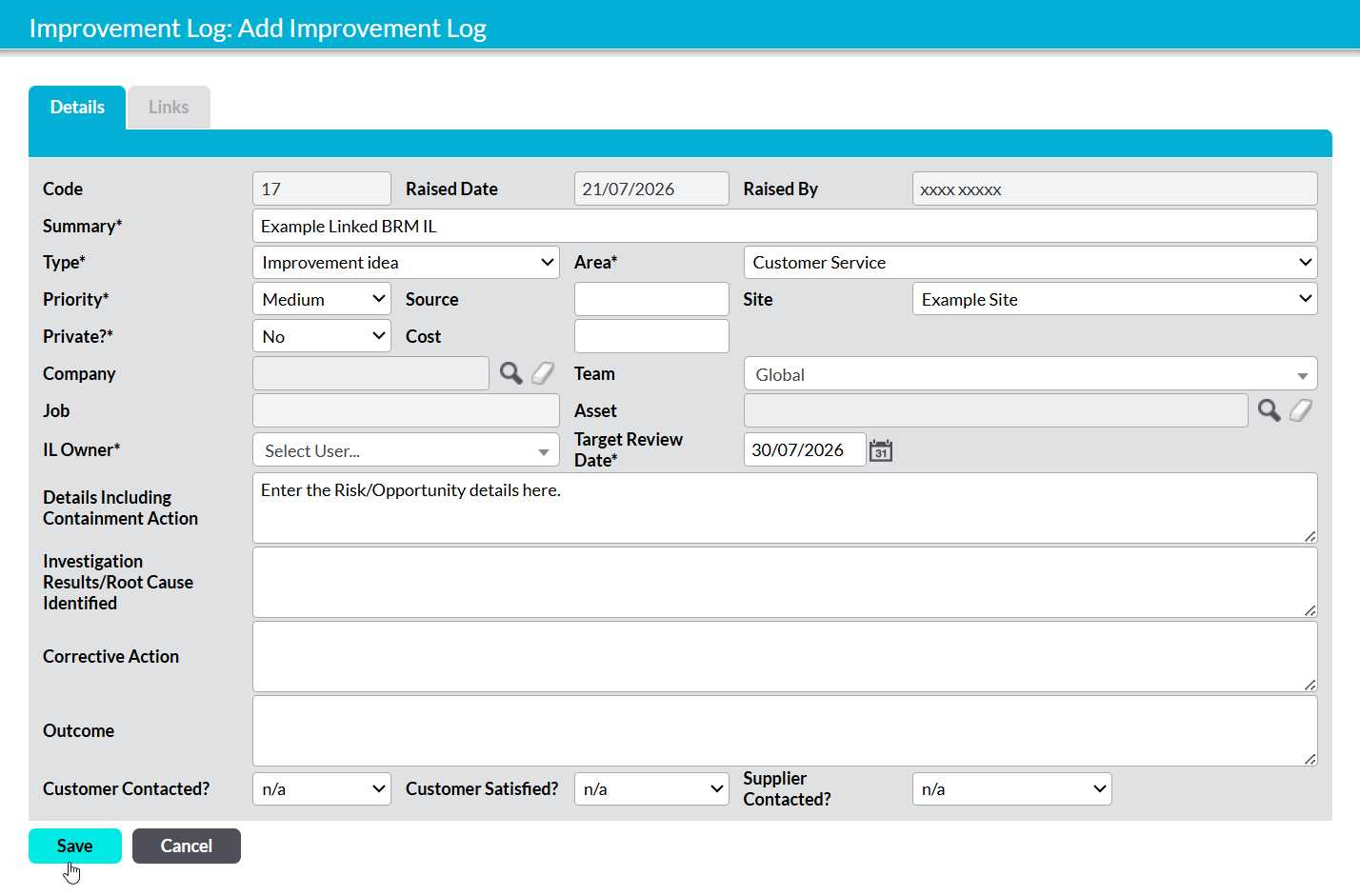
A new Add Improvement Log form will open for you to populate. Most fields within the form will be blank, but for convenience the Details Including Containment Action field will be pre-populated with the information from the Issue’s Details field.
Enter (or modify) the Improvement Log’s details as appropriate (see Create an Improvement Log for guidance), and then click Save.
You will be returned to the Risk/Opportunities Details tab, and the Improvement Log will be displayed within the Issue’s dedicated Improvement Logs tab.
*****
Link an existing Improvement Log to an Issue
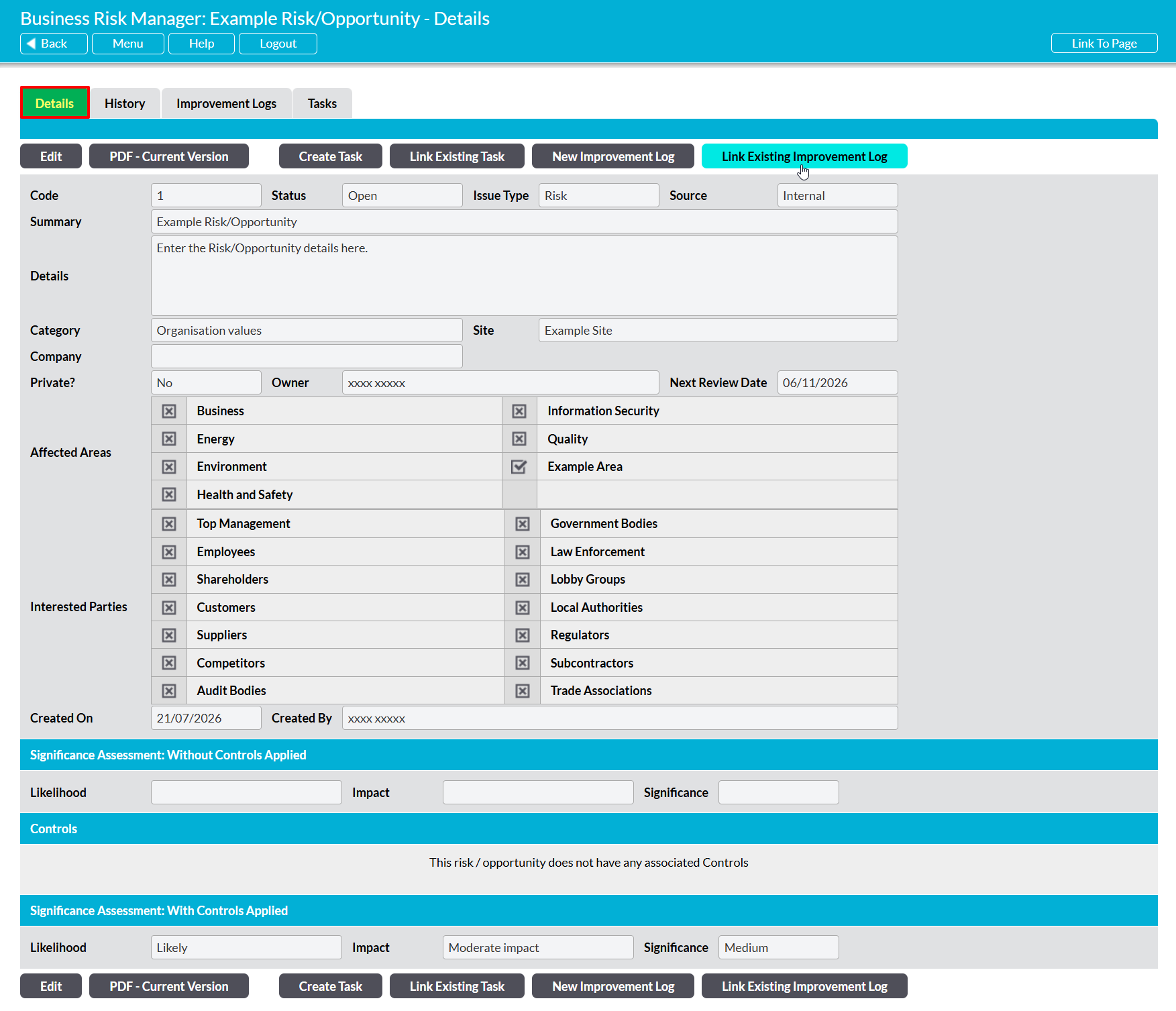
To link a Risk/Opportunity to an existing Improvement Log, open the Issue on its Details tab and click on the Link Existing Improvement Log button displayed at the top of the form.
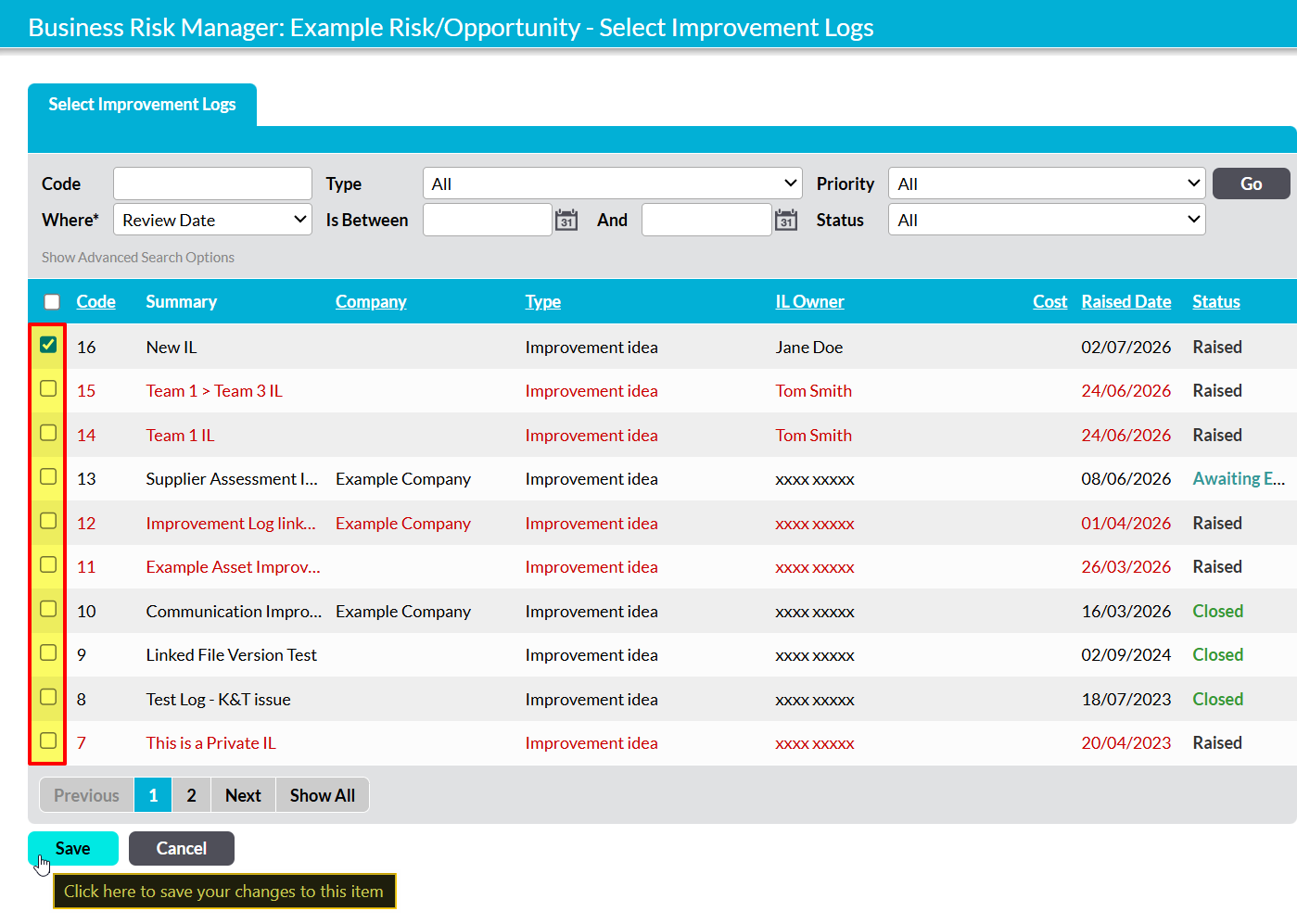
You will be presented with a popup displaying the Improvement Logs that are currently recorded in your system. Use the tick boxes to select the Improvement Logs that should be linked to the Issue, and then click Save.
You will be returned to the Risk/Opportunities Details tab, and the Improvement Log will be displayed within the Issue’s dedicated Improvement Logs tab.
