
For convenience, all external resources that have been added to an Incident Log can be managed from that Incident’s record using its External Resources tab.
This article provides guidance on managing your existing external resources, and covers:
- Viewing an Incident Log’s External Resources
- Re-ordering an Incident Log’s External Resources
- Deleting an Incident Log’s External Resources
*****
View an Incident Log’s External Resources
To view an Incident Log’s External Resources, open the relevant Incident Log and click on its External Resources tab. You will be presented with a dedicated External Resources area, which is used to view and manage any links that are currently recorded against the Incident Log.
Activ will automatically present you with a register of any links that are currently recorded against the Incident Log. Note that links will either be displayed in the order in which they were originally added to the record, or in a custom order if they have since been re-ordered (see below).

*****
Re-order an Incident Log’s External Resources
For convenience, Activ gives you the option to manually change the order in which an Incident Log’s link are displayed. To do so, open the appropriate Incident Log on its External Resources tab. You will be presented with a list of the links that are currently recorded against the Incident Log. Click on the Edit button at the bottom of the screen.

The area will be opened for editing. Locate the appropriate link in the list and click and hold the move icon displayed to the left. Use this icon to drag the link into the correct position, and then click on the Save button to finalise your changes.
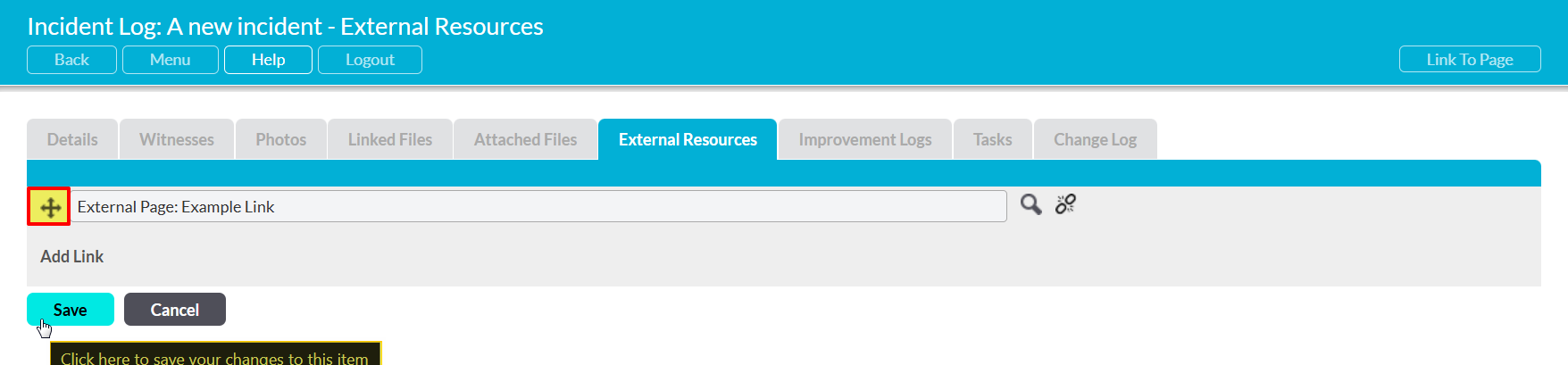
You will be returned to the Incident Log’s main External Resources area, and its links will be displayed in the newly specified order.
*****
Delete an Incident Log’s External Resources
To delete an Incident Log’s External Resources, open the appropriate Incident Log on its External Resources tab. You will be presented with a list of the links that are currently recorded against the Incident Log. Click on the Edit button at the bottom of the screen.

Activ will present you with the External Resources area’s editing view. Locate the appropriate link within the list, and then click on the break link icon displayed to its right.
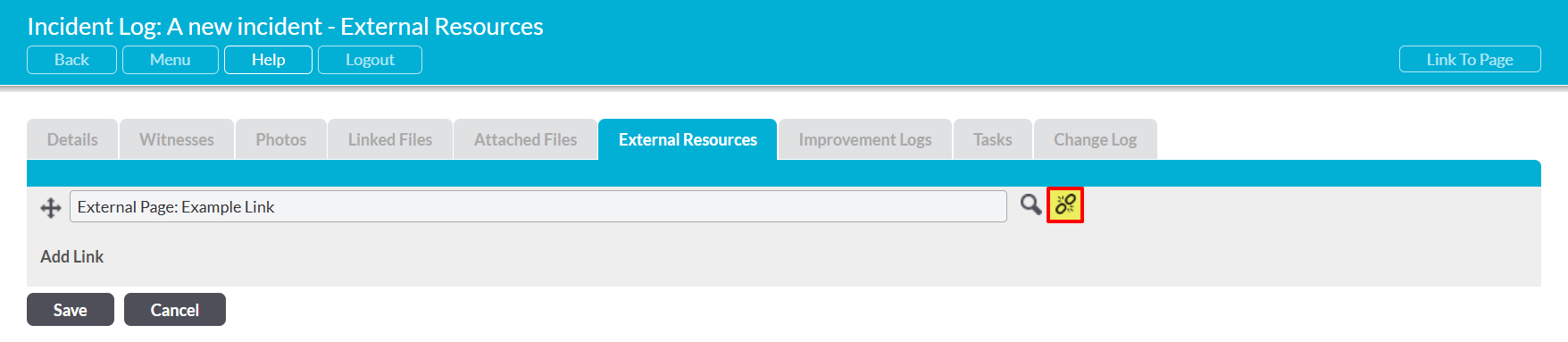
You will be prompted to confirm whether the link should be deleted. Click on OK, and the link will be removed from the area’s editing view. Click on Save to finalise your changes, removing the link from the record.

Note that deletion cannot be undone. Once a link has been deleted from an Incident Log, it will be permanently removed from your system.
