
In some cases, you may find that you have a need to link an Incident Log to files that have previously been uploaded to your system’s File Manager module; for example to provide evidence of previous Risk Assessments or Maintenance Reports, or to incorporate safety materials (such as user guides) that may need reviewing as part of the Incident’s investigation. To support this, all Incident Logs within Activ will include a dedicated Linked Files tab if your system includes the File Manager, allowing you to link the Incident Log directly to any relevant files that are already stored in your system. This allows you to keep all information relating to a given Incident within one overarching record, whilst simultaneously allowing you to continue managing the file itself within your File Manager.
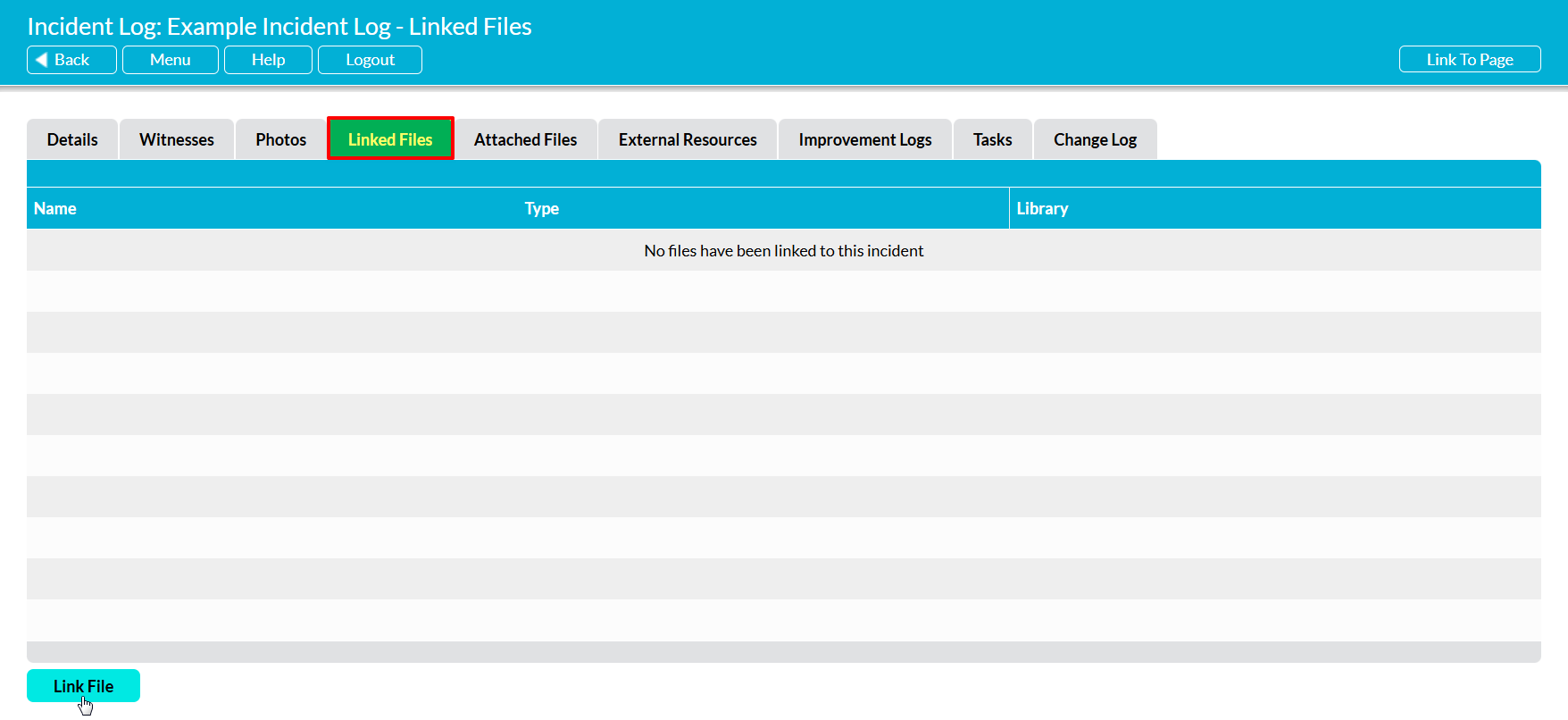
To link a file to an Incident Log, open the relevant Incident Log and click on its Linked Files tab. You will be presented with a dedicated Linked Files area, which is used to view and manage any file links that currently exist against the Incident Log. Click on the Link File button at the bottom of the screen.
You will be presented with Activ’s Link File page, which will display the File Manager Libraries that you are permitted to access. Use the tabs at the top of the screen to select the relevant Library, and the tick boxes to select the file(s) that you wish to link. Note that you can link to multiple files at once if required, but all files must be stored within the same Library. If you need to link to files within multiple Libraries (e.g. some in Records, and some in Controlled Documents), you will need to create the links for one Library’s files first, and then repeat the process to link to the others.
Click on Save once you have made your selection.

You will be taken back to the Incident Log’s Linked Files tab, and your newly linked files will be displayed within the provided file register.

