
If multiple users have ‘Edit’ rights to your Libraries (or ‘Can Edit’ to your Private folders), then it is likely that you will need some assistance in identifying precisely which, if any, of your files are currently Checked Out for editing, and who has them Checked Out. To support this, Activ automatically provides two sets of information against all Checked Out files:
See below for more information about each of these tools.
Identify Checked Out Files
Within Activ, files are considered ‘Checked Out’ whenever there is an open virtual draft saved against them: i.e. they enter this state as soon as someone saves a set of Live Editing changes, and remain in it until such time as those changes are published (creating a new live version) or discarded (deleting the draft). Files that are Checked Out are locked for editing by other users, meaning that only the person who checked the file out can make any changes to its contents whilst it is in this state.
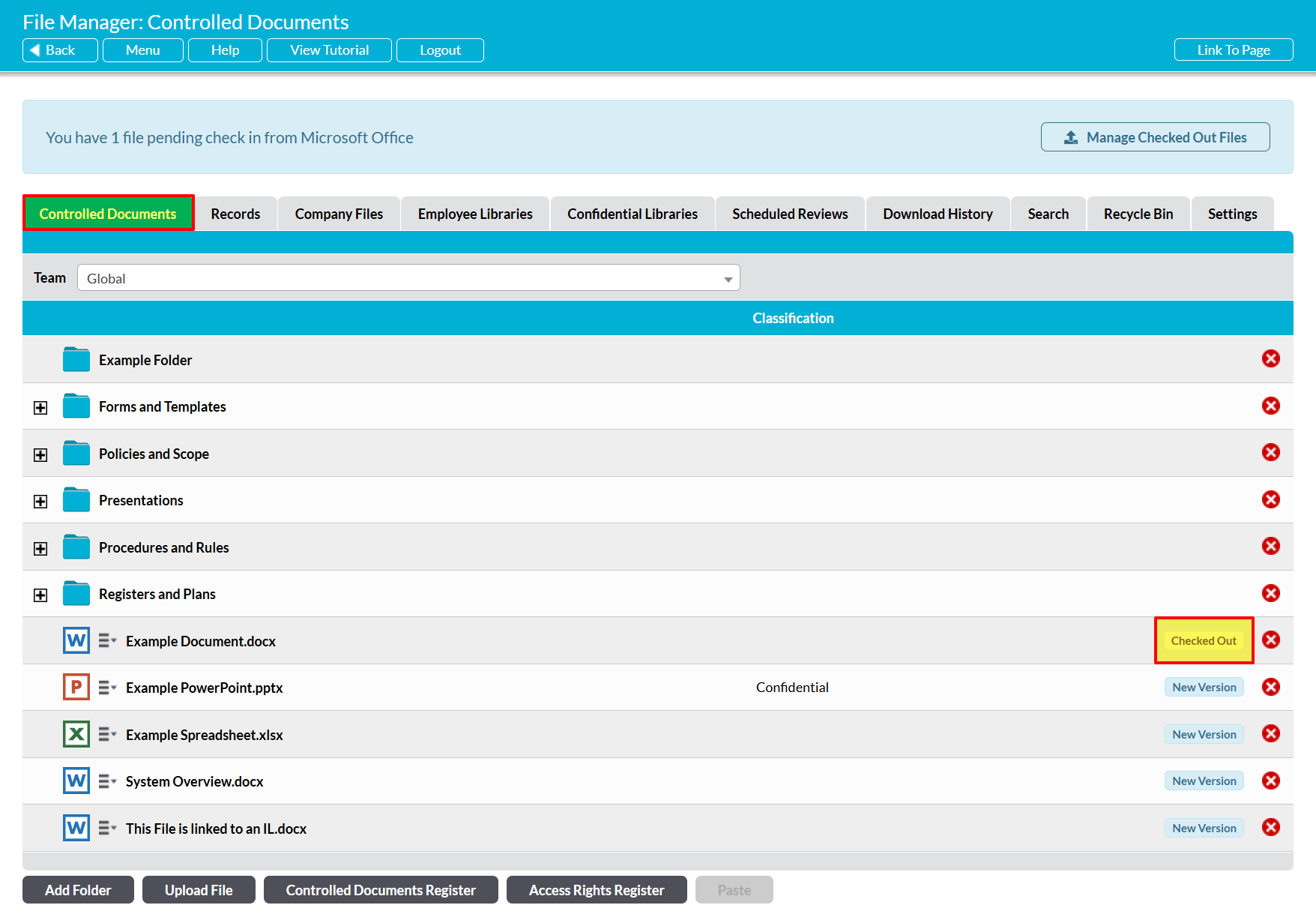
Checked Out files can be identified using the Checked Out status lozenge, which is displayed directly within the Register. This lozenge is visible to all users of your system, and will be displayed against a file until such time as its current draft is published or discarded. It is automatically added upon Checking Out a file, and automatically removed once the file has been Checked Back In.
*****
Identify The Owner of a Live Editing Draft / the User that has Checked Out a File
When a user begins a Live Edit on a file (i.e. Checks it Out), Activ will automatically Lock the parent file to that user to ensure that no one else can modify the file’s contents whist they are working on it. This file Lock will remain in place against the file until such time as the draft is published or discarded (i.e. the file is Checked In). As a result, Activ’s default Lock Information can be used to determine who has the file Checked Out, and when they originally Locked/Checked Out the file.
To view this information, open the file on its Properties tab (see View a File’s Properties) and locate:
- the Locked By field, to identify the user who currently has the file Checked Out; and
- the Locked On field, to identify when the file was originally locked.

Note that you should also check for the Checked Out lozenge within the register to determine whether the file is Checked Out. If this lozenge is not showing against the file, then it has either:
- been manually locked by the user, potentially for the download-edit-reupload methodology or for other reasons unrelated to Live Editing; or
the user may have opened the file for Live Editing, but not yet saved their initial changes (note that the Checked Out lozenge does not appear until the initial Live Editing draft has been created, and this draft is not created until the initial set of Live Editing changes are saved to the system).
