
Note that you must have ‘Admin’ permissions to the Tasks module, or be assigned to the Task, to Complete or Re-Open a Task.
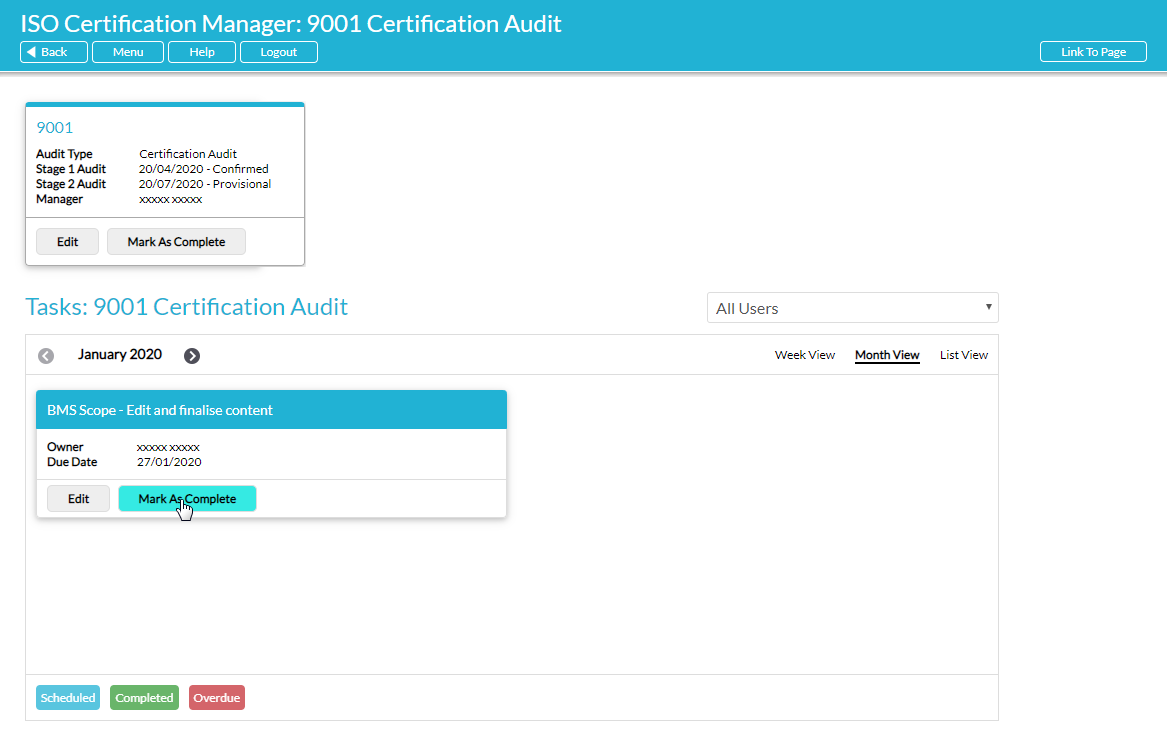
To complete an ISO Task, locate the relevant ISO Task within the Task Checklist, and click on the Mark as Complete button displayed on its tile (or alongside its record, if you are using List view).
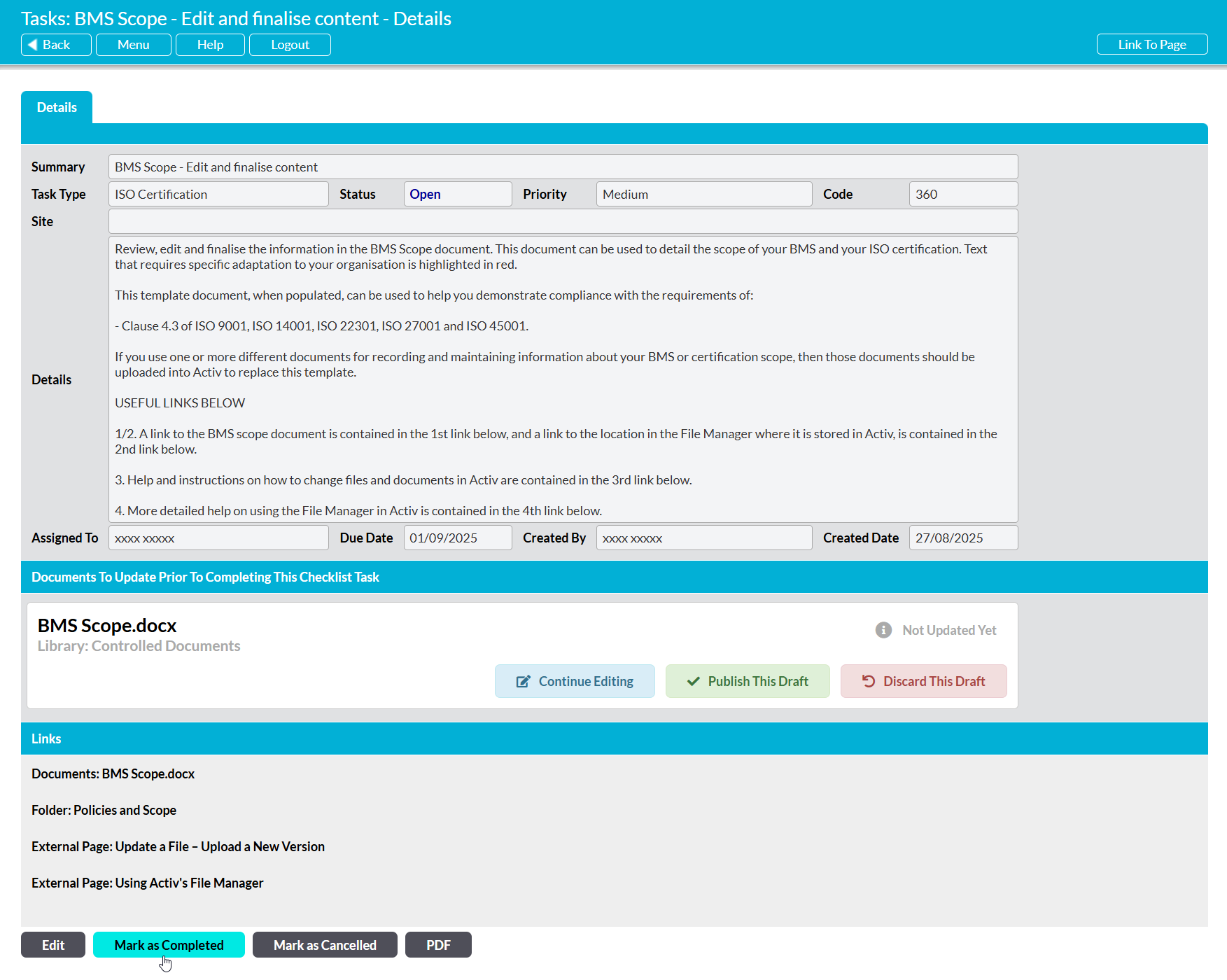
Alternatively, open the ISO Task and click on the Mark as Completed button within its Details.
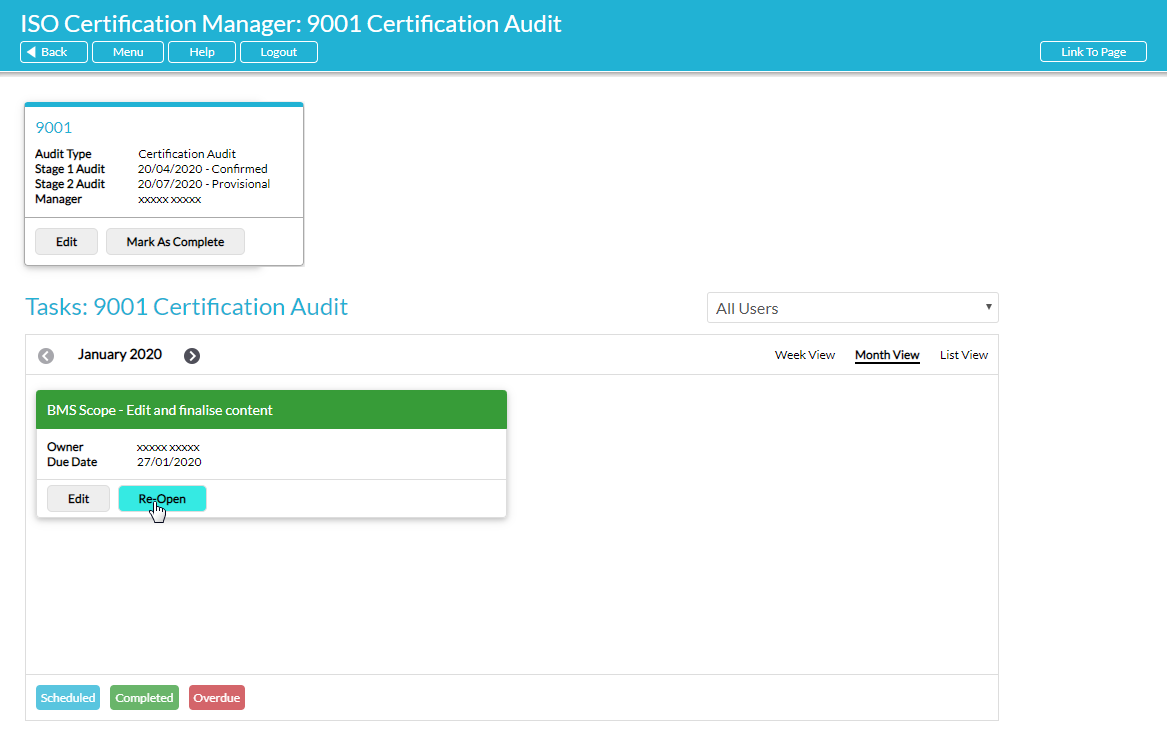
The Task’s details will be updated to include the Completed By and Completed On fields, and the corresponding tile’s banner will change from blue to green within the Task Checklist panel. A green bar will also be shown against the ISO Task’s record in List view.
If you need to re-open an ISO Task, then locate the relevant Task within the Task Checklist, and click on the Re-open button displayed on its tile (or alongside its record, if you are using List view).
Alternatively, open the ISO Task and click on the Re-Open button within its Details.
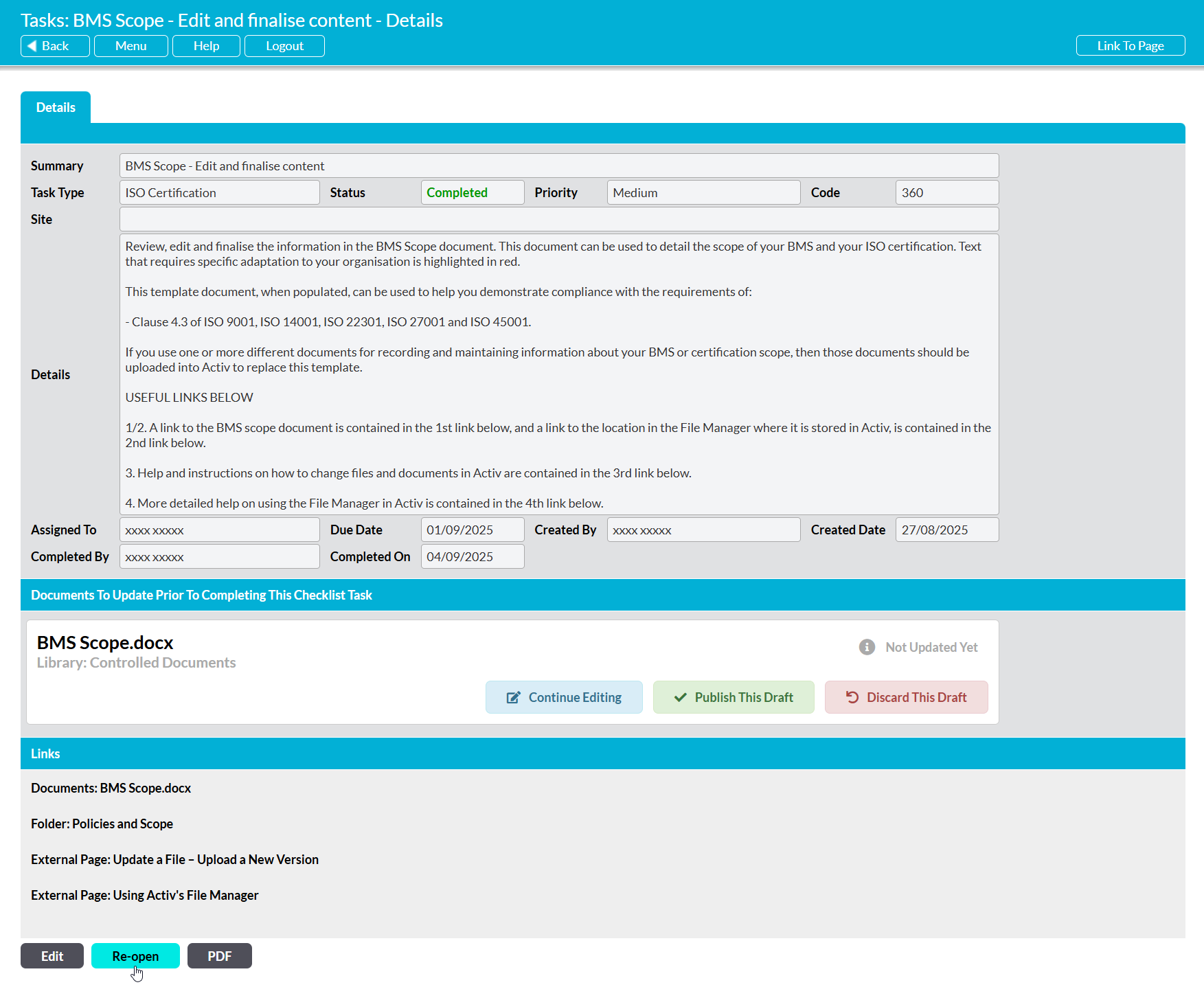
The Completed By and Completed On fields will be removed from the ISO Task’s details, and the corresponding tile’s banner will change from green to blue. In addition, the green bar shown against the ISO Task’s record in List view will be removed.
