
As explained within our Analyse Incident Frequency Rates – Calculation Methods article, monthly working hours are a crucial component of the formula that is used to calculate your Incident Frequency Rates. However, as total working hours are likely to vary significantly from company to company and month to month, Activ does not attempt to pre-configure this value. Instead, the platform requires you to manually configure your own company’s monthly working hours prior to using the Frequency Rates area, to ensure that the resulting figures are an accurate representation of your specific company’s Incident frequencies. If you do not configure your company’s working hours, Activ will not be able to calculate your Incident frequencies, and you will not be able to use the module’s Frequency Rates area.
To enable long-term, historic tracking of your Frequencies, Activ permanently stores the working hours that have been logged by your company once they have been entered into your system. This means that you only need to log a given month’s hours once: after that, the provided data will remain on record in the background, enabling you to re-generate reports that include that month’s data at any point in the future. This may be especially useful if you wish to compare historic Frequency reports to the most recent report, to identify longer-term trends such as upticks in Incidents from one year to the next.
*****
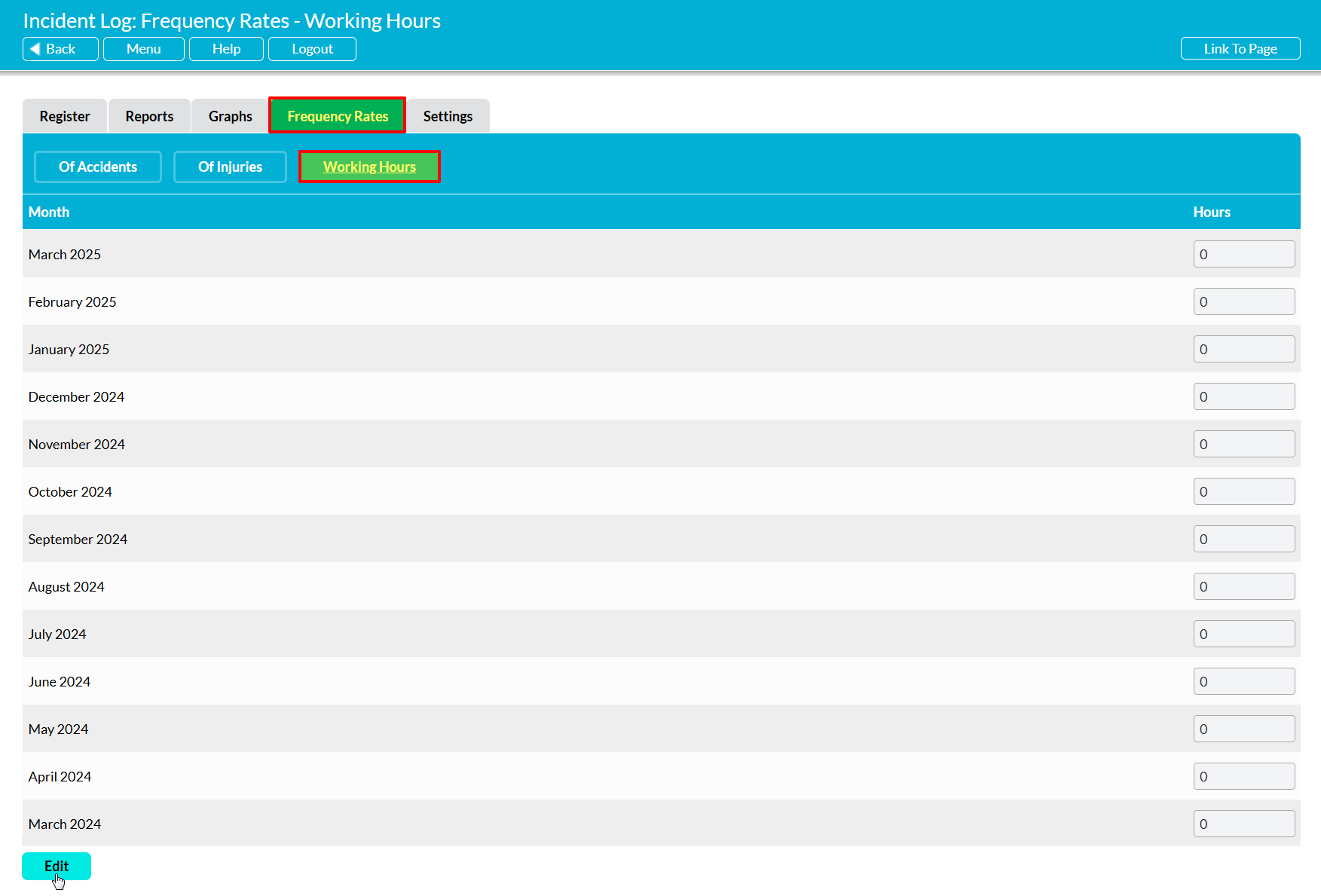
To configure your Incident Log’s monthly working hours, open the Incident Log module and click on the Frequency Rates tab. By default, Activ will open the area on its default frequency report. Click on the Working Hours button at the top of the area, directly below the module’s tabs.
You will be presented with a table listing the monthly working hours for every month that has passed since the Incident Log module was originally added to your system. If you have not yet configured this area, the hours for all months will be displayed as zero. Click on the Edit button at the bottom of the page.
All rows will be unlocked for editing. Enter the appropriate working hours against each month displayed within the table, and then click Save to finalise your changes.
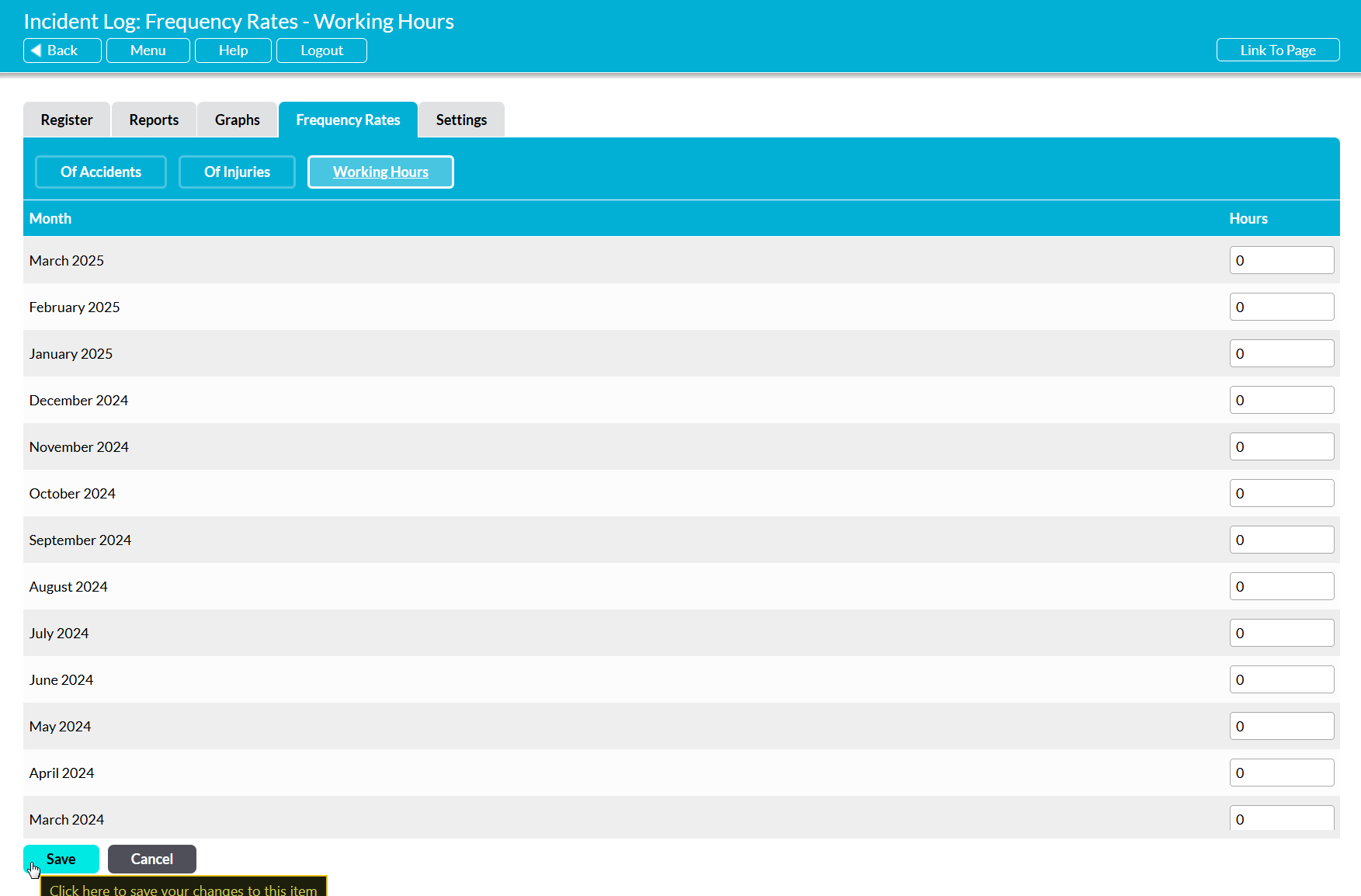
Your working hours will be logged within Activ, and if your system contains sufficient data (i.e. at least eleven months’ worth of entries) it will now be possible to begin using the area’s Frequency reports.
