
In some cases, you may find that you have a need to link your Incident Logs to online resources that are stored outside of the Activ system: for example in your SharePoint, or on another company’s webpage. These resources might be files produced by your own company, or might be third-party materials such as manufacturer guidelines or supplier/contractor information. To enable this information to be recorded, all Incident Logs within Activ include a dedicated External Resources tab, which has been designed to allow you to link to online pages outside of Activ, or to other Activ Pages (using the Link to Page button on those pages to obtain the link) if required. This ensures that all information relating to an Incident can be stored within one overarching record.
To add external resources (or internal Activ Pages) to an Incident Log, open the relevant Incident Log and click on its External Resources tab. You will be presented with a dedicated External Resources area, which is used to view and manage any website links that are related to the Incident Log. Click on the Edit button at the bottom of the screen.

The External Resources area will be opened for editing. You will be presented with a single Add Link field. Click on this field.

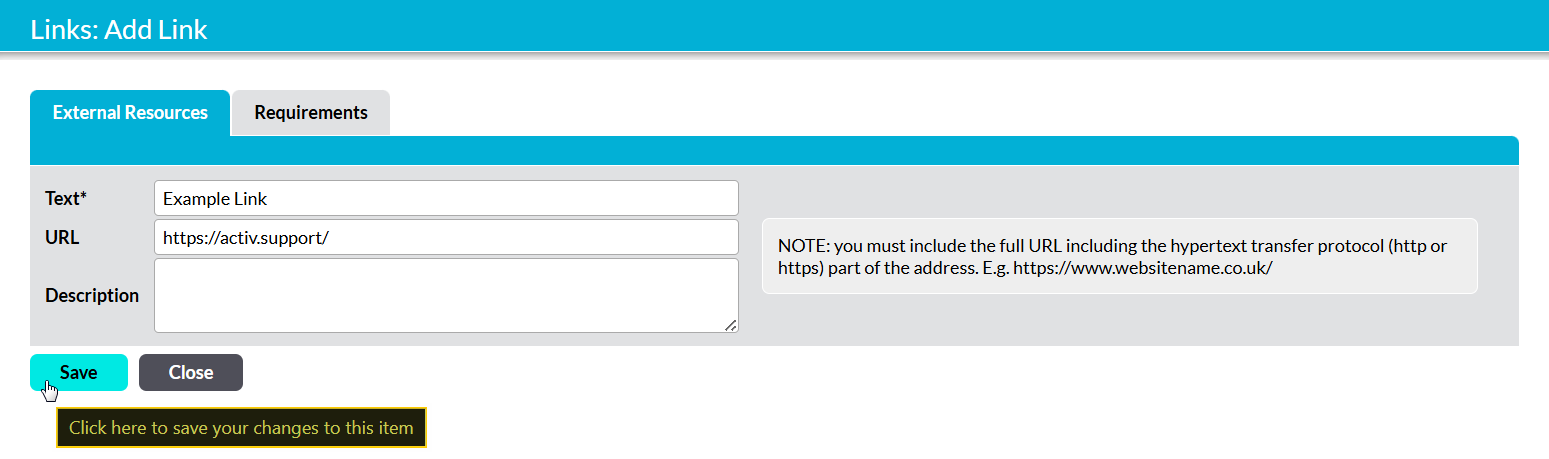
Activ will open a new Add Link form. Three fields will be available for you to complete:
Text* – enter a short descriptive name for the link.
URL – enter the link’s full URL. Note that this must include the https:// prefix.
Description – optionally, enter a short description of what the link relates to. This will appear as a tooltip when someone hovers over the link.
Enter the relevant information, and then click Save.
Your link will be added to the Incident Log, and will be displayed within the External Resources area.
