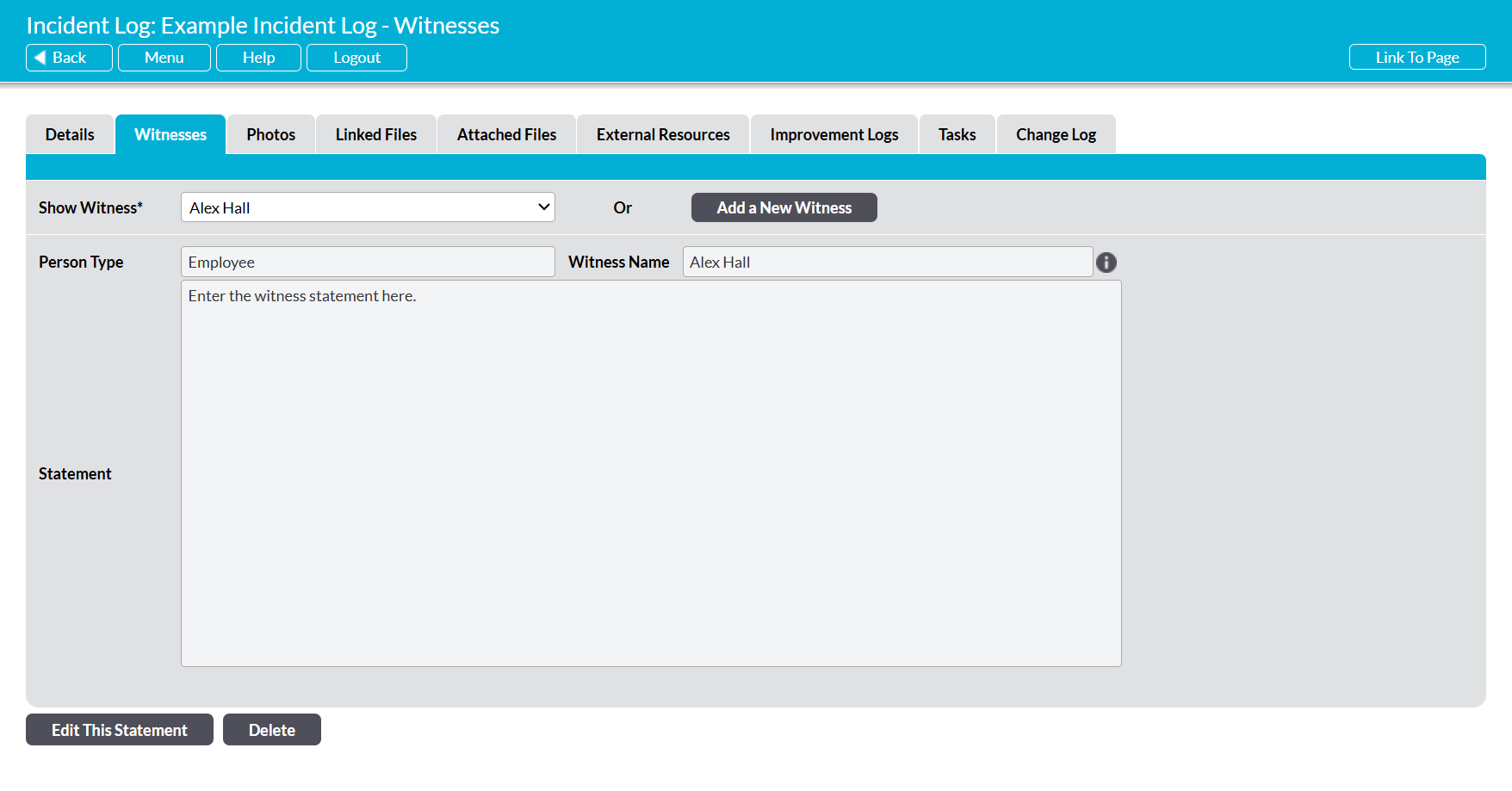
In some cases, you may find that an Incident (or near-miss) was observed by one or more witnesses, and that you have a need to record their statements so that you can get a fuller picture of the Incident and/or fully meet any related reporting requirements. To support this, all Incident Logs within Activ include a dedicated Witness Statements tab, which has been designed to allow you to log any Witness Statements directly against the Incident Log. This helps to ensure that all relevant contact information for each Witness is correctly collected, and keeps all information relating to a given Incident within one overarching record.
To add a Witness Statement to an Incident Log, open the relevant Incident Log and click on its Witnesses tab. You will be presented with a dedicated Witness Statements area, which is used to view and manage any Statements related to the Incident Log. Click on the Add a New Witness button at the top of the screen.

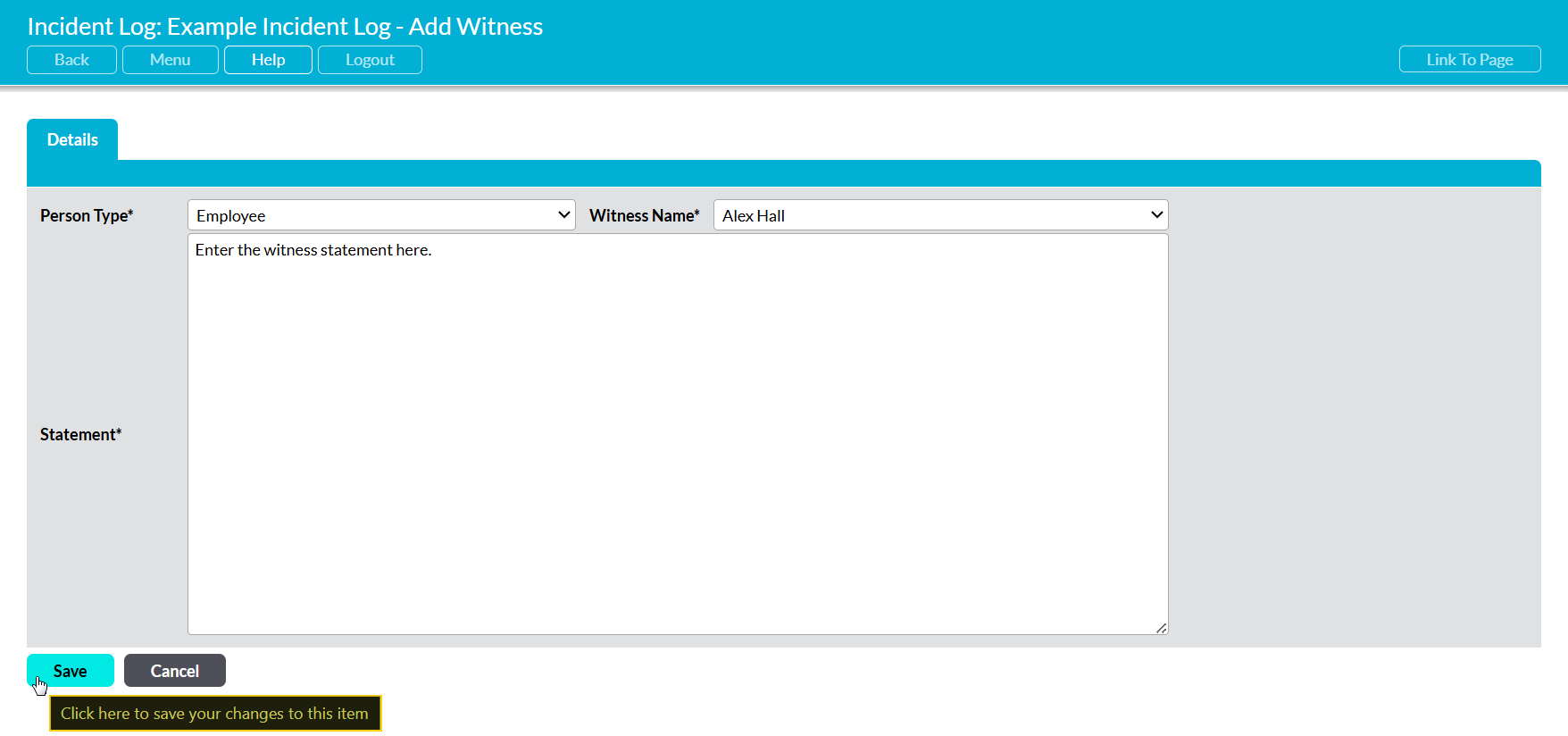
A new Add Witness form will be opened for you to populate. Up to eight fields will be available for you to complete, depending on the modules within your system:
Person Type* – use the dropdown menu to specify which type of person made the Statement (i.e. employee, contractor, visitor, etc).
Witness Name – enter the Witness’ name. Note that this field will be a dropdown menu if Person Type is set to ‘Employee’, and that you will only be able to select individuals who have a user or no-login employee record within your system if this is the case. Otherwise, this field will be free-text.
Company* – only available if Person Type is set to ‘Contractor’, and your system includes the Customers and Suppliers module. Click on the magnifying glass icon to the right of this field to open a list of the Companies that are currently recorded within your system, and then use the radio button to select the appropriate company.
Telephone – note that this field will not be available if Person Type is set to ‘Employee’, as Activ will link to the Employee’s record (which should already contain the employee’s key contact details). In all other cases, enter the Witness’ telephone number.
Mobile – note that this field will not be available if Person Type is set to ‘Employee’, as Activ will link to the Employee’s record (which should already contain the employee’s key contact details). In all other cases, enter the Witness’ mobile number.
Email – note that this field will not be available if Person Type is set to ‘Employee’, as Activ will link to the Employee’s record (which should already contain the employee’s key contact details). In all other cases, enter the Witness’ email address.
Address – note that this field will not be available if Person Type is set to ‘Employee’, as Activ will link to the Employee’s record (which should already contain the employee’s key contact details). In all other cases, enter the Witness’ address.
Statement* – enter the Witness’ statement. Note that this field is self-expanding and will allow several paragraphs to be entered, if required.
Enter the relevant information, and then click Save.
You will be taken back to the Incident Log’s Witnesses tab, and your new Witness Statement will be saved to the record.