The Supplier Assessments area includes one report that can be used to help you analyse responses to individual Supplier Assessment questions, allowing you to compare and monitor responses over time. This can help you to:
- compare different Supplier responses to individual questions;
- compare the responses provided by a single Supplier over time, if the Supplier has answered the same version of a Template multiple times; and
- identify adjustments that may need to be made to a question (e.g. by highlighting consistent misunderstandings or gaps in the responses received).
Note that, due to the nature of this report and the volume of questions that a Supplier Assessment Template can contain, Activ will only allow you to report on one question at a time: you cannot include two or more questions within the same report. Similarly, you cannot report on multiple Templates or Template versions at once.
*****
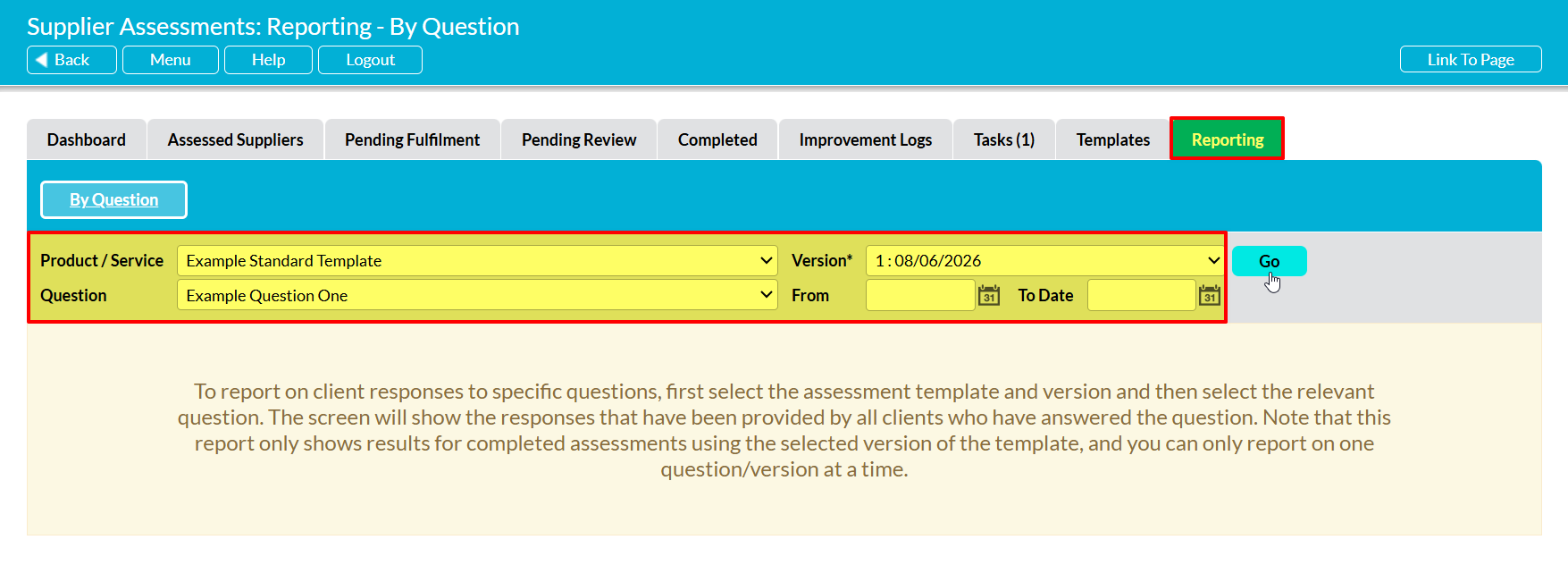
To view your Supplier Assessment’s report, open the Supplier Assessments area and click on its Reports tab. Activ will automatically open on its By Question report, which will initially contain a prompt advising you to select relevant filters. Five filters are available for configuring the report:
Product / Service* – use the dropdown menu to specify which Supplier Assessment you wish to report on. Note that new unpublished Templates will automatically be excluded from the list.
Version* – use the dropdown menu to select which version of the Template you wish to report on. Note that draft versions are excluded from the menu, and that the latest version of the Template will be selected by default.
Question* – use the dropdown menu to specify which question should be reported on. Note that you must select a Template and version before you can make a selection within this field, and that the field will automatically be cleared if you change your Template or version selection. Also note that conditional questions within the selected Template are displayed directly beneath their ‘parents’, and will be prefixed with:
- —>[Yes], if they are only shown when the parent question is responded to with a ‘Yes’ answer; or
- —>[No], if they are only shown when the parent question is responded to with a ‘No’ answer.
- —>[‘Custom option text’], if they are only shown when the parent question is responded to with a specific Custom Option
From / To – optionally, select the date range for which the Report should be run. Note that you can run the field using both fields, just one of the fields, or neither field, as required. If no date is specified within the From/To fields, Activ will show every response that has been provided for the selected question using the selected Template version.
Click on Go once you have made your selections.
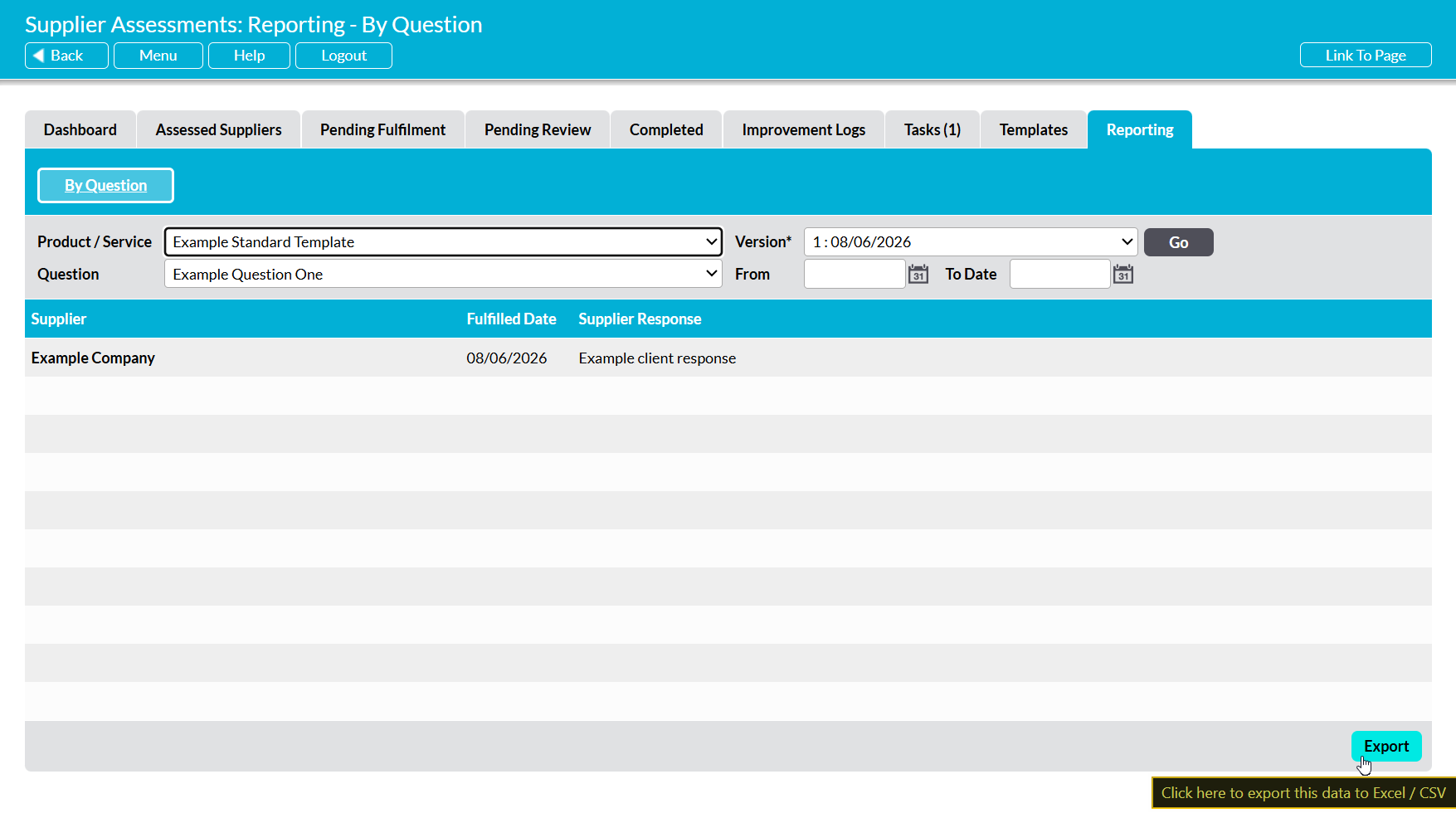
Activ will generate a report displaying:
- the names of the Suppliers who have responded;
- the dates on which each Supplier made the response; and
- the responses.
Each response will be displayed on its own row within the register. In addition, if a Supplier has been issued with the same version of the Template multiple times, and consequently provided multiple responses to the same question, all of their responses will be displayed within the report.
If necessary, you can extract the underlying raw data from the report using the Export button displayed at the bottom of the page. This will download a CSV file of the date, enabling you to perform further analysis outside of Activ.