
Over time, it is likely that you will need to change some of the key details of the Assets that are recorded within your system: for example to log a change of the Asset’s Site or Owner, or to update any notes that may have been stored directly against the Asset. In addition to this, in some cases you may find that you also need to track any updates that are made to these key details, so that you can maintain oversight of how they have changed over time. To support this, Activ automatically maintains a complete record of changes that are made to any of the fields within an individual Asset’s Details tab, and logs these within a dedicated Timeline tab. This allows you to:
- View a summary of all changes that have been made to the Asset’s details; and
- Filter the Timeline by editor or date.
*****
View the Timeline of Changes
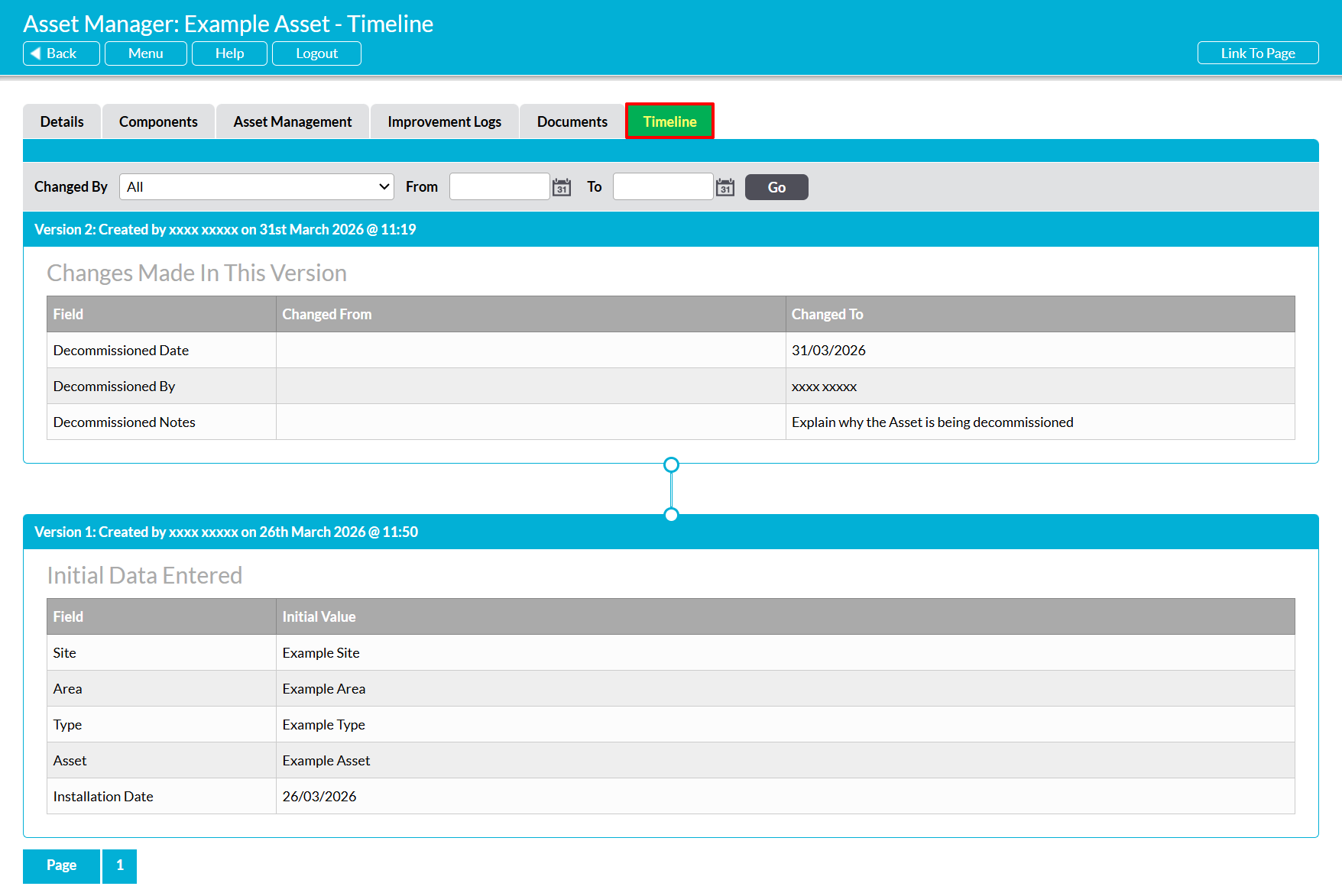
To view an Asset’s Timeline, open the Asset and click on its Timeline tab.
You will be presented with a chronological record of all changes that have been made to the Asset’s main Details fields, with the most recent changes listed first. Each record is housed in its own panel and provides a summary of which fields were changed, what the previous content of each field was, and what the new content is. In addition, key information regarding the version number, who made the changes, and when the changes were made, are recorded in the panel’s top left.
*****
Filter the Timeline
If necessary, Activ allows you to filter your Timeline to locate any changes that were made by a specific user or between two specified dates. To use this feature, select the appropriate user in the Changed By field and enter the appropriate dates in the From and To fields, then click Go.
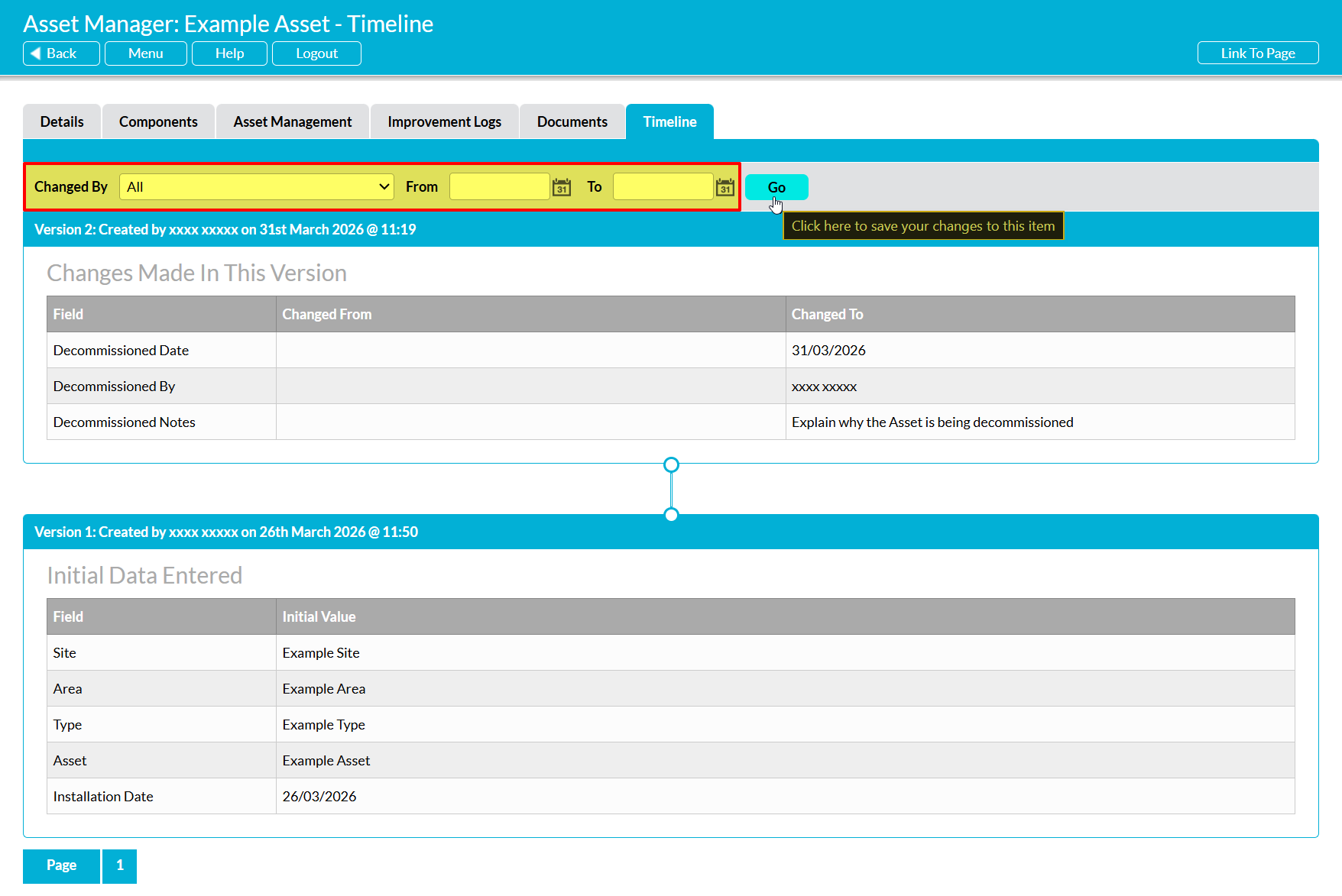
Activ will automatically filter the Timeline so that it only displays the versions that match your chosen criteria.
